
How to Connect Apple Watch to iPhone
By Marcus Chen, Senior Technology Editor · 15 years covering Apple ecosystem & iOS · Published March 21, 2026
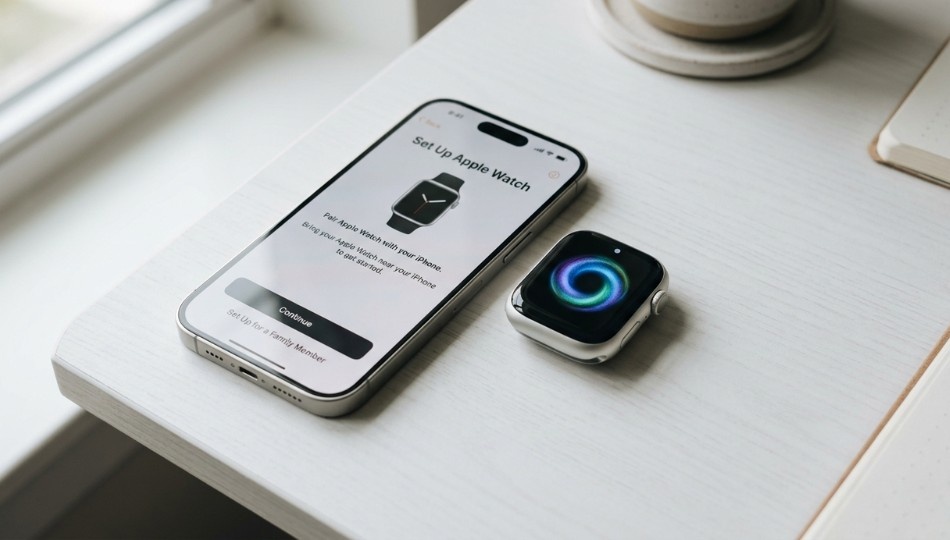
More than 200 million Apple Watches are active worldwide. If you just got one or recently upgraded your iPhone, you may quickly discover that a device worth several hundred dollars doesn’t always communicate smoothly with your phone. Even experienced users often encounter hiccups, especially since iOS 18 quietly changed pairing rules for older Watch models. Knowing exactly how to connect Apple Watch to iPhone and how to troubleshoot issues is essential in 2026.
This guide provides step-by-step instructions, highlights common pitfalls, and explains situations where typical advice fails.
If you’re also facing broader iPhone-related issues, this detailed iOS troubleshooting can help resolve common system-level problems that may affect pairing.
Quick Answer
Connecting an Apple Watch to an iPhone links the two devices via Bluetooth and Wi-Fi so they share calls, messages, health data, and apps. The connection relies on Bluetooth for initial pairing and Wi-Fi for syncing data in the background. Pairing happens through the iPhone camera, which scans a unique animation on the Watch screen, then completes setup via the Apple Watch app. Unlike Android smartwatches, this process requires the dedicated Apple Watch app and an iPhone running iOS 16 or later. For some older Watches, iOS 18 is required.
Apple Watch shipments grew 26% year-over-year in North America in Q3 2025, according to Counterpoint Research. That growth makes proper setup critical for millions of users.
Why Getting This Right Matters More Than Ever in 2026
Pairing rules changed significantly with iOS 18. Owners of Apple Watch Series 5 or older who unlinked their device may find they cannot re-pair unless the iPhone runs iOS 18 or later. Thousands of users ran into this issue in Apple Community forums in 2025, often assuming their watch was broken.
Apple’s official documentation does not clearly explain this restriction. For anyone buying second-hand Watches, switching phones, or resetting a device, this can be a major roadblock.
Globally, 528 million people now own smartwatches, with Apple controlling roughly 23–38% of the market depending on the metric. Most setups go smoothly, but when problems occur, solutions are specific and often non-obvious.
As of March 2026, there are three common scenarios:
- A brand-new Apple Watch with an existing iPhone
- An existing Apple Watch with a new iPhone
- Troubleshooting a Watch that refuses to connect
Treating these situations the same is the main reason users get stuck.
How to Connect Apple Watch to iPhone: The 5-Stage Pairing Protocol
Before starting, do three things:
- Charge both devices to at least 50%
- Ensure your iPhone runs iOS 16 or later (Settings > General > Software Update)
- Make sure Bluetooth and Wi-Fi are enabled (Airplane Mode disables both silently)
Scenario A: New Apple Watch, Existing iPhone
This is the straightforward setup. Follow these steps in order.
Step 1: Power on the Apple Watch
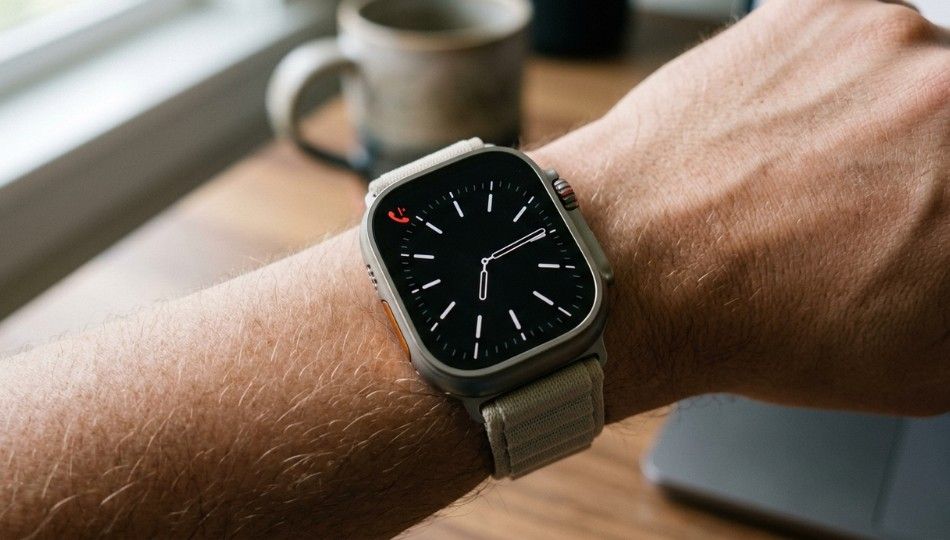
Press and hold the side button until the Apple logo appears. Wear the watch on your wrist to enable proximity detection.
Step 2: Wait for the iPhone prompt or open the app
Within 30 seconds, your iPhone should display “Use your iPhone to set up this Apple Watch.” Tap Continue. If it doesn’t appear, open the Apple Watch app, tap All Watches > Add Watch.
Step 3: Scan the pairing animation
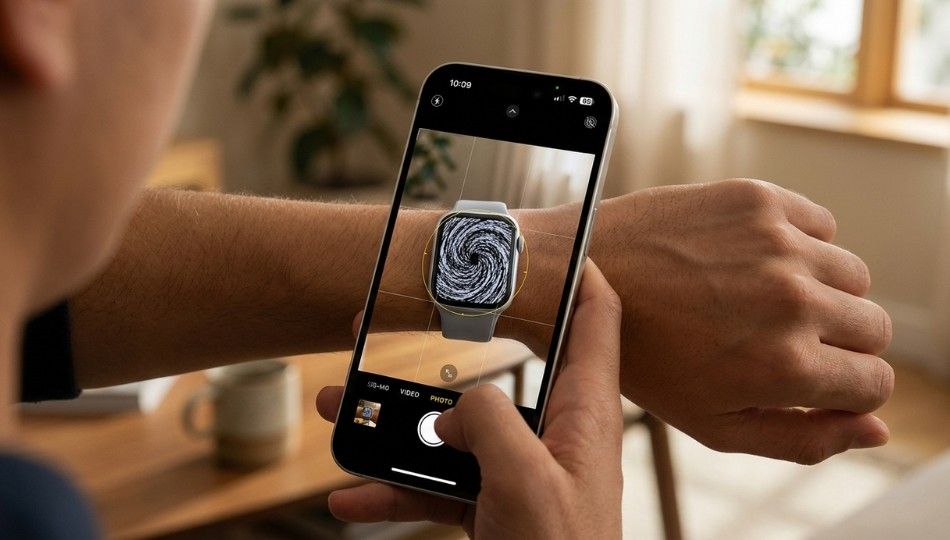
Point your iPhone camera at the swirling pattern on the Watch screen. Keep your hand steady. The animation confirms pairing when the iPhone vibrates.
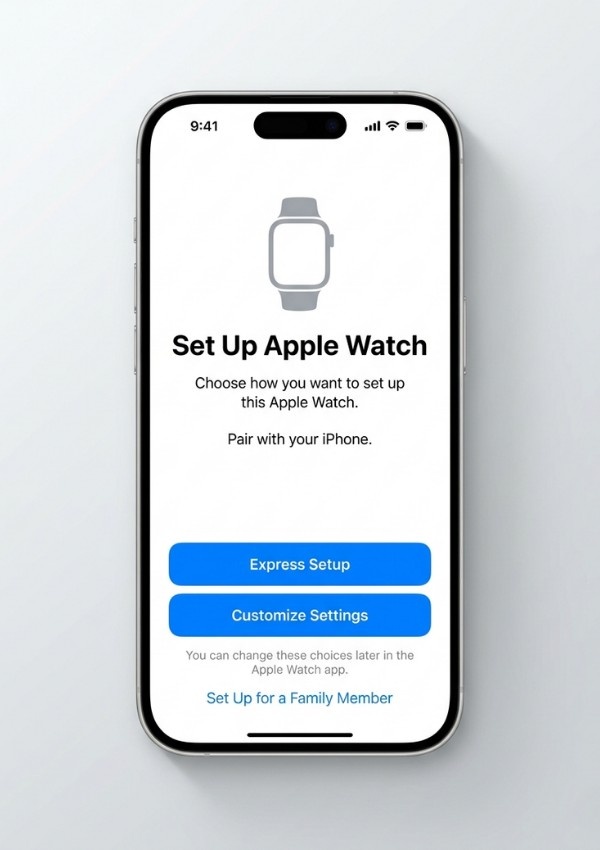
Step 4: Choose Express Setup or Customize Settings
- Express Setup: Copies your iPhone’s settings including display brightness, Siri language, accessibility options, and health permissions to the Watch.
- Customize Settings: Lets you adjust each option individually. Recommended if you want tighter privacy or specific accessibility configurations. You can always adjust later in the Watch app.
Step 5: Wait for syncing and possible updates
The Watch face appearing means pairing is complete, but syncing runs in the background. Apps, contacts, and health permissions transfer automatically. If a watchOS update is required, it may take 45 – 90 minutes. The screen may go dark temporarily this is normal. Keep both devices charged and near each other.
Since updates can take a long time, make sure Low Power Mode isn’t restricting performance this iPhone battery yellow explanation helps you understand when to turn it off.
Scenario B: Existing Apple Watch, New iPhone
This scenario requires careful backup to avoid data loss.
Before powering on your new iPhone:
- On your old iPhone, go to Settings > [your name] > iCloud and ensure Health is enabled.
- Back up your old iPhone to iCloud. This includes your Apple Watch data: Activity rings, workouts, and watch faces.
During setup of the new iPhone, you should see a prompt: “Do you want to use [Watch Name] with this iPhone?” Tap Continue. If the prompt does not appear, open the Apple Watch app to finish pairing. In some cases, you may need to unpair from the old iPhone after confirming the backup.
Third-party app data may take up to 48 hours to sync via iCloud.
New iPhone vs. New Watch: Why the Scenario Matters
Which situation you’re in determines every step you take. Getting them confused is the single biggest reason pairing fails or data disappears. Here’s the breakdown:
Scenario | New Apple Watch + existing iPhone | Existing Watch + new iPhone |
Primary setup device | iPhone (Watch app) | iPhone (Watch app) |
Back up iPhone first? | No — watch starts fresh | Yes — critical before switching |
Typical setup time | 25–35 min (longer if update) | 20–30 min + iCloud sync lag |
Data loss risk | Low | Medium if Health off in iCloud |
Activation Lock danger | Only on second-hand watches | Not applicable |
Express Setup available? | Yes | Yes, if backup found |
watchOS update warning | Can add 45–90 min unexpectedly | Rarely triggered |
- Scenario A: Use when adding a new Watch to a functioning iPhone.
- Scenario B: Use when moving a Watch to a new iPhone. Backup is essential to preserve health and activity data.
A real-world example: a fitness coach lost three months of client workout history because she skipped the Health backup before switching iPhones. Only a secondary encrypted Mac backup saved the data.
Recent market insights from Counterpoint Research highlight the rapid growth of Apple Watch adoption worldwide.
Tip: Express Setup copies all iPhone permissions, including health and location. For privacy-conscious users, select Customize Settings to review options.
What Actually Happens After Pairing
It can take up to 72 hours for all iCloud Health data to appear. Immediate transfers include:
- Apple Account sign-in
- Watch faces restored from backup
- Apple Pay cards (re-verify each)
- Bluetooth accessories
- Wrist detection and orientation
- Notification preferences
Transfers that occur over 24–72 hours:
- Health and Activity data
- Fitness+ history
- Workout routes
- Third-party app data
Data not transferred automatically:
- Music synced directly to the Watch
- Podcasts downloaded to the Watch
- Photos stored locally on the Watch
Profiles that benefit most from proper pairing:
- Health trackers: ECG, blood oxygen, and sleep data work best when connected to the iPhone Health app.
- Commuters and travelers: Apple Pay, boarding passes, and notifications require reliable iPhone connection.
- Family sharing users: Watches for children require independent pairing with cellular support.
Second-hand watch warning: Activation Lock prevents pairing without the original owner’s Apple Account. There is no bypass.
5 Common Mistakes That Break Pairing
1. Using 5 GHz Wi-Fi with older watches
Apple Watch Series 4 and earlier support only 2.4 GHz Wi-Fi. If your router broadcasts only 5 GHz, setup stalls silently. Solution: enable 2.4 GHz temporarily or use your iPhone hotspot.
2. Skipping iCloud Health backup before switching iPhones
Without a backup, Activity history is lost. Always verify Health sync before setup.
3. Buying a second-hand Watch without unpairing
Activation Lock triggers if the previous owner didn’t unlink the device. Confirm unpairing to avoid this irreversible problem.
4. Misreading the progress circle
A dark screen with a small progress circle often appears during a watchOS update. Don’t reset the Watch this is normal.
Keeping devices too far apart
Pairing uses Bluetooth, syncing uses Wi-Fi. Keep the iPhone and Watch within arm’s reach during initial sync.
Three Things to Do Right Now
- Verify your iPhone’s iOS version and Health sync status in iCloud.
- Identify your scenario: new Watch with existing phone or existing Watch with new phone.
- If setup fails, check Wi-Fi bands, Activation Lock status, and watchOS update progress before resetting.
Proper setup takes 30 minutes. Mistakes can stretch the process to two hours. Following this guide ensures your Apple Watch connects and syncs correctly.
Frequently Asked Questions
Initial pairing takes about 2 minutes, but full setup, including watchOS updates, can run 25–90 minutes. Background syncing continues for hours afterward.
No. The app is required and pre-installed on iOS 14 or later. Re-download from the App Store if deleted.
Check that Bluetooth and Wi-Fi are on. Bring devices close together. If the red iPhone icon persists, restart both devices (iPhone first).
Back up your old iPhone to iCloud with Health enabled. Restore your new iPhone from that backup, then follow the prompt to continue using your Watch.
Apple recommends at least 50% battery. Low power can prevent watchOS updates from completing.
No. Only one iPhone can be paired at a time. Switching requires unpairing first, which creates a backup.
Pairing creates the initial device link. Syncing is the ongoing data exchange over Bluetooth and Wi-Fi.
Partially. GPS models track workouts and play music when in Wi-Fi range. Cellular models operate fully without the iPhone. Initial setup always requires the iPhone.