
Ghost Image Monitor: Causes, Fixes & How to Prevent Screen Ghosting
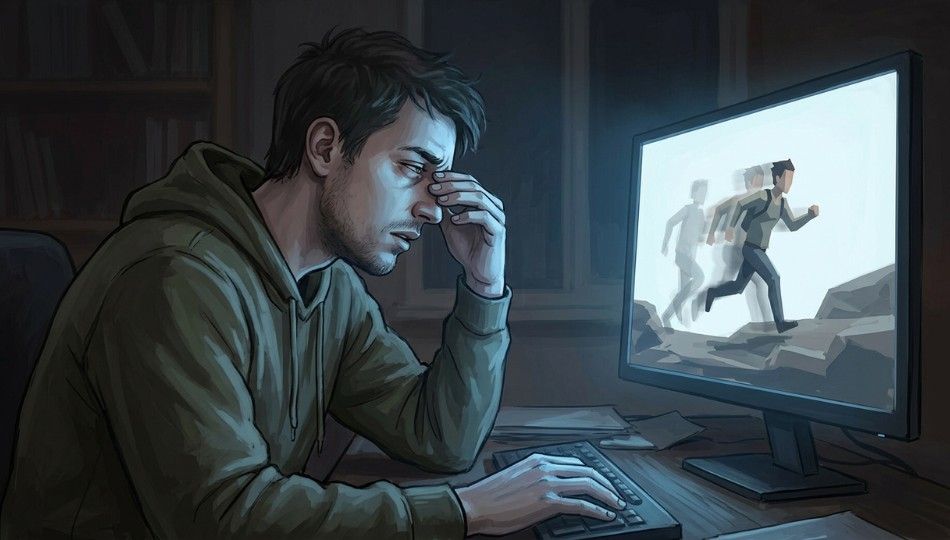
Nearly 43% of monitor users experience visual artifacts at some point, yet many struggle to find a lasting fix. A ghost image on your monitor is one of those issues. What starts as a faint trail behind moving objects can quickly become distracting. In 2026, with the rise of high-refresh-rate panels, 4K OLEDs, and multi-monitor setups, the causes of ghosting have grown more complex.
This guide explains exactly what causes ghost images, how to tell them apart from image retention and burn-in, and how to fix each issue effectively.
What Is a Ghost Image Monitor?
A ghost image monitor shows faint, trailing visuals of previously displayed content. This usually happens when pixels cannot switch between colors fast enough or when liquid crystals temporarily “remember” static images.
Unlike burn-in, which permanently damages pixels, ghosting is usually reversible. Roughly 20% of LCD users notice this issue. It can cause eye strain and reduce visual clarity during gaming, video editing, and spreadsheet work. For more information on the difference between ghosting and burn-in see Wikipedia: Screen Burn-In.
Why Ghost Image Monitor Problems Are Increasing in 2026
It might seem that newer monitors would reduce ghosting. However, the surge in high-refresh-rate displays has introduced new ghosting scenarios.
As of March 2026, monitors with 240Hz, 360Hz, and even 500Hz panels are common. These require pixel response times under 1ms gray-to-gray (GtG). Misconfigured overdrive settings used to speed up pixel transitions can create inverse ghosting, where a bright halo precedes moving objects.
A 2025 Blur Busters report found that over 60% of users trying to fix ghosting by maxing out overdrive inadvertently caused inverse ghosting.
OLED monitors, while providing excellent clarity, now show image retention more frequently after displaying static elements like toolbars for a few hours. This differs from motion ghosting and requires different handling.
How Ghost Image Monitor Issues Actually Work: The Identify-Isolate-Intervene Framework
Most people treat ghosting as a single problem, but there are three separate types of artifacts. Addressing the wrong one wastes time.
Stage 1: Identify Which Ghost You’re Facing
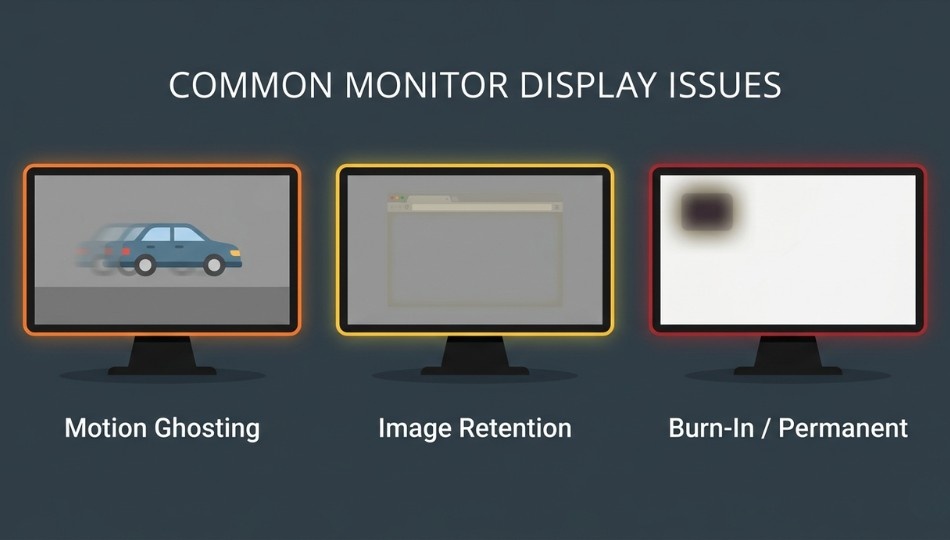
- Motion ghosting – Appears during movement. A blurry smear follows fast objects. Pausing content removes it. This is a pixel response issue.
- Image retention – A faint, static afterimage of previously displayed content, like a browser outline on a gray background. Usually fades within minutes to hours after turning the monitor off.
- Burn-in – Permanent pixel degradation, mainly on OLEDs. Visible even on a white screen.
Stage 2: Isolate the Source
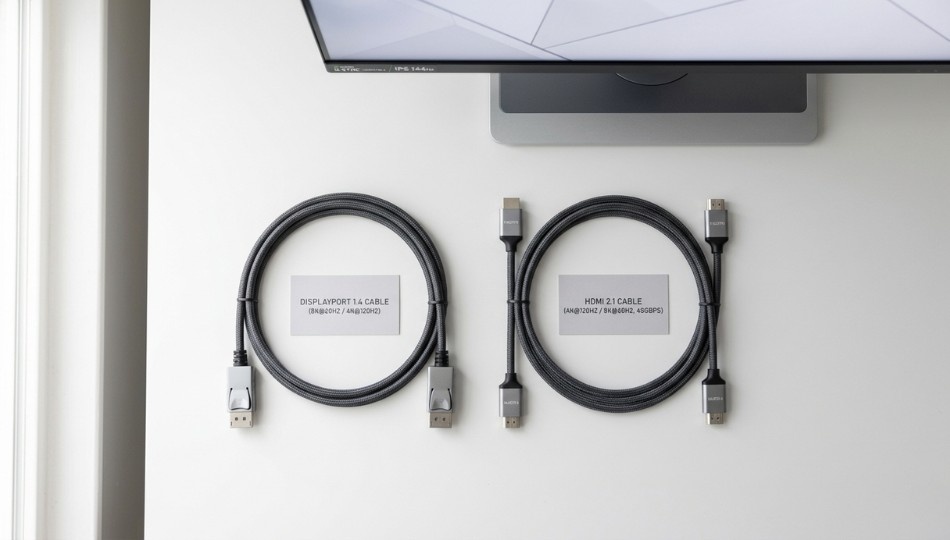
- Check your cables – Low-quality HDMI or DisplayPort cables can mimic ghosting. Switching to certified DisplayPort 1.4 or HDMI 2.1 often fixes the issue.
- Use the Blur Busters UFO test at testufo.com to detect motion ghosting.
- Test for image retention by displaying a static gray screen for 30 minutes, then switching to white. Lingering outlines indicate retention.
- Remove interference sources – Wireless routers, Bluetooth devices, or charging pads near the monitor can cause artifacts, especially on budget monitors.
Stage 3: Intervene with the Right Fix
Once identified, each issue has its own fix. Motion ghosting requires overdrive adjustments. Image retention often clears with a short rest or pixel cycling. Burn-in is permanent and only preventable.
Ghosting vs. Image Retention vs. Burn-In: A Comparison
| Feature | Motion Ghosting | Image Retention | Screen Burn-In |
|---|---|---|---|
| Cause | Slow pixel response | Static image displayed too long | Pixel material degradation (OLED) |
| When It Appears | During movement | After static content removed | Permanent |
| Affected Panels | VA, IPS, some OLED | IPS, LCD | OLED, CRT, Plasma |
| Duration | Temporary | Minutes to hours | Permanent |
| Fixable | Yes | Yes | Only mitigable |
| Primary Fix | Adjust overdrive | Rest monitor or pixel cycling | Prevention |
| Risk Level | Low | Low to medium | High |
| 2026 Prevalence | Very common | Common | Increasing with OLED adoption |
Key Insight: Higher refresh rates alone do not prevent ghosting. A 240Hz monitor with poor overdrive can ghost more than a well-configured 144Hz display. Correctly identify your artifact type before applying fixes.
How to Prevent Screen Ghosting
Preventing ghosting is easier than fixing it after it appears. Follow these practical strategies:
1. Use Correct Overdrive Settings
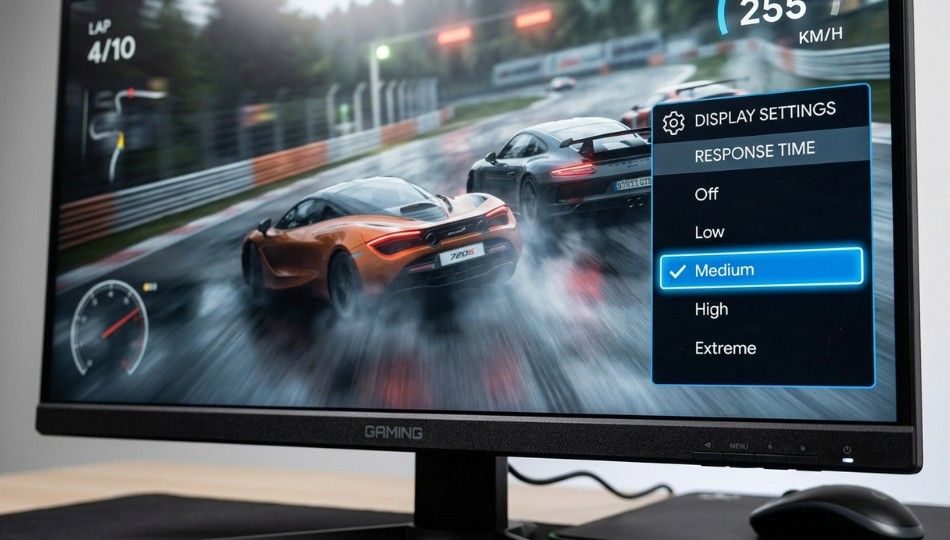
Set overdrive to Medium or Normal. Avoid extreme settings, which cause inverse ghosting. Test using the Blur Busters UFO test.
2. Match Refresh Rate to Panel Capability
Ensure the monitor runs at its maximum refresh rate. On Windows, go to Display Settings > Advanced Display.
3. Avoid Static Content for Long Periods
Rotate static elements like toolbars or dashboards to prevent liquid crystal retention. Screen savers with moving content can help.
4. Give Your Monitor Regular Breaks
Turn off the monitor occasionally, or run a full-screen white or color-cycling video to refresh pixels.
5. Use High-Quality Cables
Certified HDMI 2.1 or DisplayPort 1.4 cables reduce signal degradation that mimics ghosting.
6. Reduce Electromagnetic Interference
Keep routers, Bluetooth devices, and charging pads away from your display to prevent interference artifacts.
7. Keep GPU Drivers Updated
Regularly update graphics drivers from NVIDIA, AMD, or Intel to ensure stable frame delivery
8. Understand Panel Type Behavior
- VA panels: More motion blur; overdrive tuning important.
- IPS panels: Occasional retention; generally reliable.
- OLED: Excellent motion clarity; vulnerable to long-term burn-in. Rotate content to prevent damage.
9. Avoid Extreme Image Persistence
Shift HUDs, toolbars, and static UI elements periodically. Dynamic content reduces prolonged pixel stress.
10. Perform Routine Calibration
Maintain optimal brightness, contrast, and color settings to avoid forcing pixels into extreme voltage states, which accelerates ghosting.
Real Benefits of Fixing Screen Ghosting
Fixing ghosting improves both comfort and performance:
- Competitive gaming: Correct overdrive settings enhance tracking accuracy.
- Creative work: Video editors can rely on frame-accurate color and movement.
- Reduced eye strain: Motion ghosting can increase visual strain by up to 28% over a two-hour session. For research on eyestrain, see the University of Waterloo Vision Science Study.
- Extended monitor lifespan: Proper overdrive reduces voltage stress on pixels.
- Better color accuracy: Proper settings remove inverse ghosting and false color halos.
Older monitors with slow native pixel responses may still ghost, but software and cable fixes can minimize artifacts.
Common Mistakes When Fixing Ghost Image Monitors
- Maxing out overdrive – Causes inverse ghosting. Start at Medium and adjust gradually.
- Ignoring cables – Low-quality cables are a common, overlooked cause.
- Confusing adaptive sync with motion blur reduction – Enabling FreeSync or G-Sync may disable ULMB/ELMB, worsening ghosting.
- Incorrect refresh rate – Many monitors default to 60Hz. Running a 144Hz panel at 60Hz creates noticeable trailing images.
- Skipping GPU driver updates – Frame pacing irregularities can mimic ghosting. Update drivers regularly. For further guidance on checking hardware issues causing software symptoms, see what-does-sos-mean-on-iphone.
Three Steps to Fix Your Ghost Image Monitor Today
- Run the Blur Busters UFO test – Identify your ghosting type in 90 seconds.
- Adjust overdrive and refresh rate – Set overdrive to Medium and refresh rate to maximum.
- Swap the cable if necessary – Use certified DisplayPort 1.4 or HDMI 2.1 cables to eliminate signal problems.
Following this framework ensures your monitor displays content accurately without trailing images.
FAQ: Ghost Image Monitor
Motion ghosting is caused by slow pixel transitions, image retention by static content, and burn-in by permanent OLED pixel damage
Set overdrive to Medium or Normal and confirm your refresh rate is at maximum. This resolves most motion ghosting.
No. Ghosting is temporary; burn-in is permanent, mainly on OLEDs.
It increases eye strain during long sessions but does not cause permanent damage.
Even IPS panels can temporarily retain static content. Turning off the monitor or using a white screen clears it.
Higher refresh reduces frame persistence but does not eliminate ghosting. Overdrive and pixel response matter more.
Set overdrive to Medium, confirm refresh rate, update GPU drivers, and use high-quality cables. For image retention, run full-screen color cycling for 30-60 minutes.
Yes. OLEDs have fast pixel transitions, but they are more susceptible to image retention and long-term burn-in.