
Basic Troubleshooting for PC
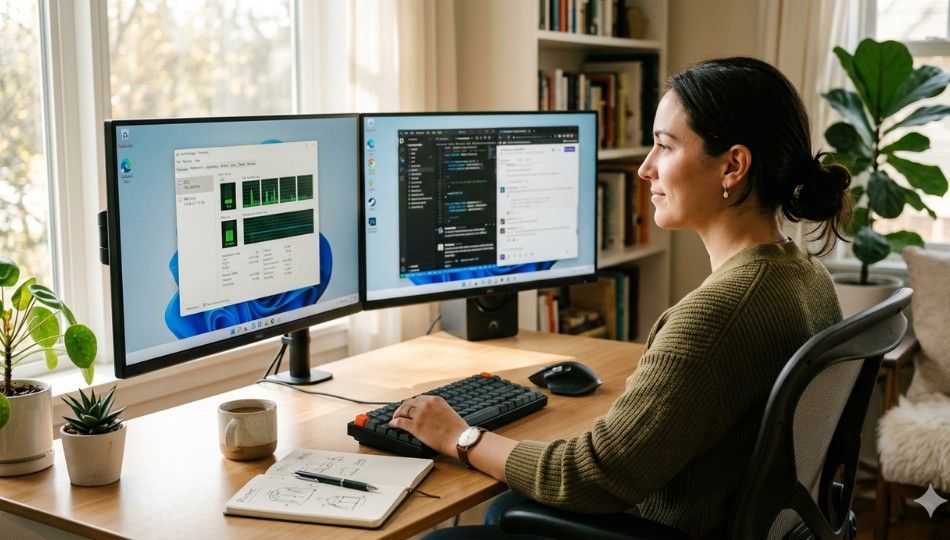
We’ve all had that moment your PC freezes right when you need it most, and a simple restart doesn’t help. It’s frustrating, especially when you’re on a deadline.
Here’s the good news: most computer problems don’t require expert-level skills. With a clear, step-by-step approach, you can fix the majority of issues yourself. In this guide, you’ll learn how to identify what’s wrong, apply the right fix, and avoid making things worse.
If a program becomes completely unresponsive, you can manually close it using Task Manager. Follow, force close an application on Windows to safely stop frozen apps.
What “Basic Troubleshooting for PC” Actually Means
Basic PC troubleshooting is simply a logical way to find and fix problems.
Instead of guessing, you:
Identify the issue
Narrow down the cause
Apply the simplest fix first
This approach works because most PC problems are not complex. In fact, many are caused by:
software glitches
outdated drivers
background apps
simple hardware issues like dust or loose cables
Learning this process saves both time and money and gives you control over your system.
Many of these troubleshooting steps are part of broader IT practices used in businesses through system administration software, which helps monitor and manage computer systems efficiently.
Why Your PC Is Acting Up More in 2026
If your PC feels less stable lately, you’re not imagining it.
Modern systems are more complex than ever. Frequent updates, especially in Windows 11, can sometimes introduce:
driver conflicts
slow performance
black screen issues
unexpected crashes
Another common issue? Many people don’t realize that “Shut Down” is not a full reset anymore.
With Fast Startup enabled, your PC saves part of its state instead of clearing everything. That means:
Problems can carry over even after shutting down
Simple fix:
Always use Restart when troubleshooting. It forces a full system reset and often solves issues instantly.
The STAR Framework: A Simple Troubleshooting Method That Works
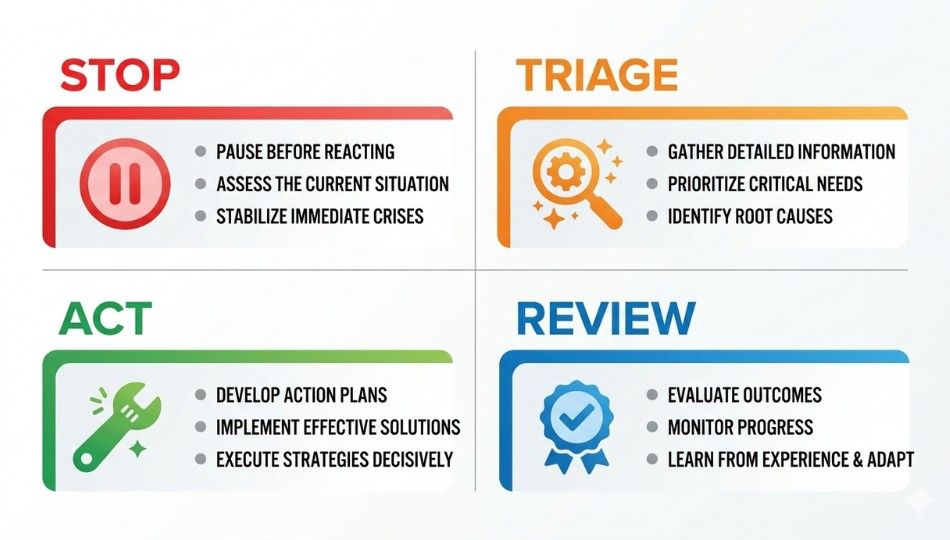
Instead of trying random fixes, follow this structured method:
Step 1 - Stop: Don’t Rush
Before doing anything:
Note what went wrong
When it started
What changed recently (updates, apps, devices)
This small step often reveals the cause faster than trial-and-error.
Step 2 - Triage: Hardware or Software?
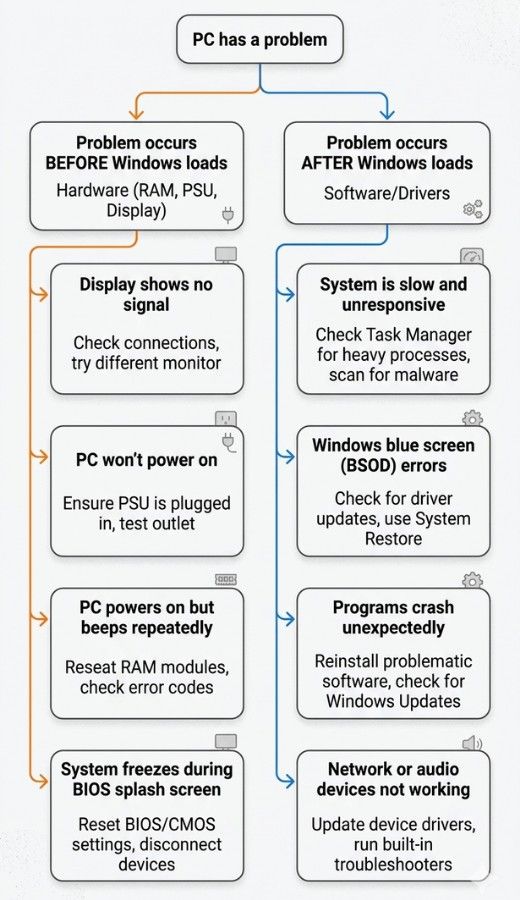
This is the most important decision.
Ask yourself:
Does the issue happen before Windows loads?
→ Likely a hardware problem
Does it happen after Windows loads?
→ Likely a software or driver issue
Quick checks:
No display / no boot → hardware
Freezing, crashing → software
Slow performance → usually software
In some cases, hardware acceleration can actually cause lag or crashes, especially in browsers and apps. You can fix this by turn off hardware acceleration.
Use Task Manager (Ctrl + Shift + Esc):
CPU > 80% with no apps → background issue
RAM > 90% → memory overload
Step 3 - Act: Fix in the Right Order
Always start with the least risky fixes:
Restart (properly)
If your screen freezes or goes black suddenly, try resetting your graphics driver.Restart (properly)
For deeper system-level fixes and official troubleshooting steps, you can refer to the Windows support documentation from Microsoft, which covers most common issues in detail.Check Device Manager (driver issues)
Run System File Checker
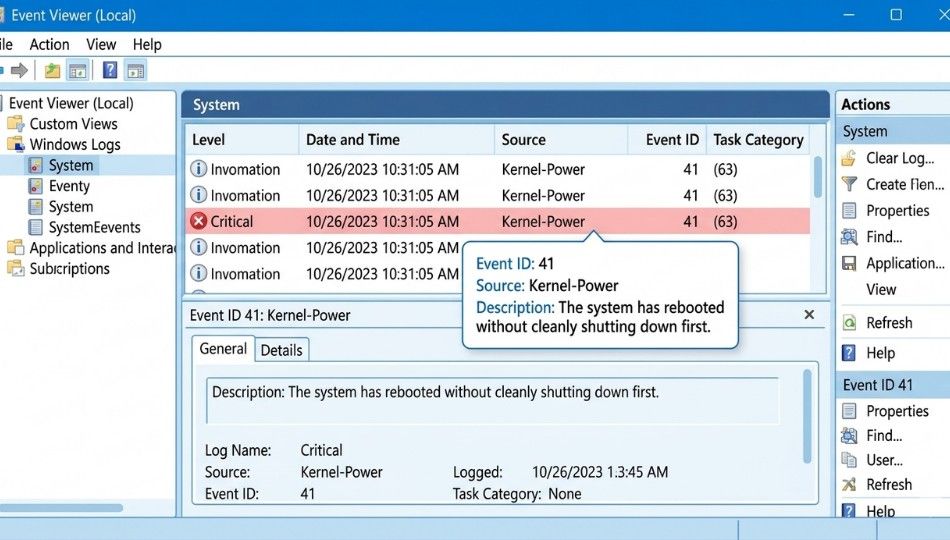
sfc /scannowCheck Event Viewer
Look for “Critical” errors
Match time with the issue
Tip: You don’t need to understand everything in Event Viewer.
Just note:
Time
Error source
Error code
Search that error online, you’ll usually find a direct fix.
Step 4 - Review: Did It Actually Work?
After applying a fix:
Use your PC normally for 30–60 minutes
See if the issue returns
If it does, move to the next step don’t repeat the same fix.
Common PC Fixes: When to Use Each One
Not all fixes are equal. Choosing the right one saves hours.
Quick restart
Best for: freezes, glitches
Time: 2 minutes
Windows Update
Best for: bugs after updates
Time: 10–30 minutes
SFC Scan
Best for: system file issues
Time: ~15 minutes
You can also follow the official guide on how to use the System File Checker tool if you’re unsure how the process works.
Driver rollback
Best for: issues after updates
Time: 5 minutes
System Restore
Best for: recent software problems
Time: ~20 minutes
Windows Reset (keep files)
Best for: major OS issues
Time: 1–2 hours
Professional repair
Best for: hardware failure
Time: 1–5 days
👉 Important tip:
If you’ve been troubleshooting for hours with no result, a Windows reset is often faster and cleaner.
Real Benefits of Fixing PC Issues Yourself
Once you understand basic troubleshooting, you’ll notice:
Faster Performance
Disabling startup apps alone can reduce boot time significantly.
Lower Overheating Risk
Cleaning dust improves airflow and prevents shutdowns.
According to Intel’s guidelines on CPU performance, overheating can significantly reduce system efficiency and lifespan if not addressed early.
Longer PC Lifespan
Regular maintenance reduces wear and prevents major failures.
5 Mistakes That Make PC Problems Worse
Avoid these common errors:
1. Changing Multiple Things at Once
You won’t know what fixed (or broke) the issue.
👉 Always test one change at a time.
2. Searching Symptoms Instead of Errors
“PC slow” is too vague.
👉 Use actual error codes for accurate fixes.
3. Using Registry Cleaners
These are outdated and often harmful.
👉 Modern systems rarely need them.
4. Ignoring Heat Issues
High temperatures damage components over time.
👉 Monitor and clean regularly
5. Skipping Backups
Before major fixes:
👉 Always back up your data
This protects you from unexpected failures.
Final Thoughts
Basic PC troubleshooting isn’t about becoming a technician.
It’s about staying calm, following a process, and fixing problems efficiently.
Once you understand the method, most issues stop feeling overwhelming and start feeling manageable.
And that’s the real goal: confidence, not complexity.
Three Things to Do Right Now
If you want to avoid future problems, start here:
1. Check Temperatures
Use a tool like HWMonitor.
If temps are high → clean your PC.
2. Clean Startup Apps
Open Task Manager → Startup tab
Disable unnecessary apps.
3. Set a Monthly Maintenance Routine
Run updates
Scan for malware
Clear junk files
Check system logs
If you’re dealing with display issues like ghosting or shadows, check out the computer screen shadow problem fix for step-by-step solutions.
FAQ: Common PC Troubleshooting Questions
Always start with a Restart, not Shut Down.
Yes. Try:
disabling startup apps
clearing temporary files
updating Windows
These solve most performance issues.
Common causes:
driver conflicts
faulty RAM
hardware failure
Check the error code for accurate diagnosis.
Before Windows loads → hardware
After Windows loads → software
Monthly: updates, cleanup
Quarterly: dust cleaning
Yearly: backup check
Stop and get professional help if:
PC won’t turn on
you hear clicking from a drive
reset fails
you smell burning