
How to Fix an Acer Laptop Stuck on the Loading Screen

You press the power button, the Acer logo appears, and then everything stops. The spinning dots freeze, the screen goes nowhere, and your laptop feels completely stuck. If that sounds familiar, do not panic. In many cases, this problem can be fixed at home without wiping your files or paying for a repair right away.
An Acer laptop stuck on the loading screen usually means the startup process is breaking before Windows can fully load. That can happen because of corrupted boot files, a bad update, a driver conflict, BIOS settings, or even a storage or memory issue. The good news is that most of these causes can be narrowed down with a few smart checks.
This guide walks you through the process in the right order. You will start with the safest fixes first, then move into recovery tools only if needed. That saves time, lowers risk, and gives you a better chance of getting the laptop running again without losing data.
What Does "Acer Loading Screen Stuck" Actually Mean?
When an Acer laptop is stuck on the loading screen, the machine powers on but cannot move past the Acer logo or the Windows loading animation. The system begins the boot process, but something interrupts the handoff between hardware, firmware, and Windows.
This is different from a normal crash after login. In this case, Windows never fully starts, so you are blocked before reaching the sign-in screen or desktop. It is one of the more frustrating boot problems because the laptop looks alive, but it cannot finish starting.
Why Your Acer Is Freezing at Startup in 2026
There is no single cause behind this issue. Still, a few reasons come up more often than others.
A recent Windows update is one of the biggest triggers. Many users notice the issue right after a major Windows 10 or Windows 11 update, especially if the update was interrupted or if a driver became incompatible during installation. If your Acer worked fine before an update and now freezes at startup, that is an important clue.
Corrupted boot files are another common reason. A forced shutdown during an update, sudden power loss, or repeated failed starts can damage the files Windows needs to boot.
Driver problems also matter. Graphics, chipset, and storage drivers can prevent the system from loading normally. In some cases, the laptop only works in Safe Mode because Windows is trying to load a driver that crashes during startup.
Hardware can also be involved. A failing SSD or hard drive may stop Windows from loading. Loose or faulty RAM can create boot freezes as well. Some Acer laptops also respond well to a battery pinhole reset because static charge or power state issues can block a normal start.
BIOS settings are easy to overlook, but they matter too. If the wrong boot device is selected or firmware settings are unstable, the laptop may sit at the logo screen and go no further.
How to Fix an Acer Laptop Stuck on the Loading Screen: The Diagnosis-First Framework
Before you jump into random fixes, slow down and identify what the laptop is doing. That gives you a better starting point.
Before moving into recovery tools, start with a few simple checks. if you need help with general startup checks for basic PC troubleshooting.
Stage 1: Stop Rebooting It Over and Over
If the laptop has already been stuck for a while, avoid endless forced restarts. Repeating hard shutdowns can make a software problem worse, and if the storage drive is failing, it can increase the risk of file damage.
If you hear unusual clicking from inside the laptop, that can point to a hard drive issue. If the machine is silent and frozen on the logo or spinning dots, software or firmware is more likely.
Stage 2: Identify the Startup Pattern
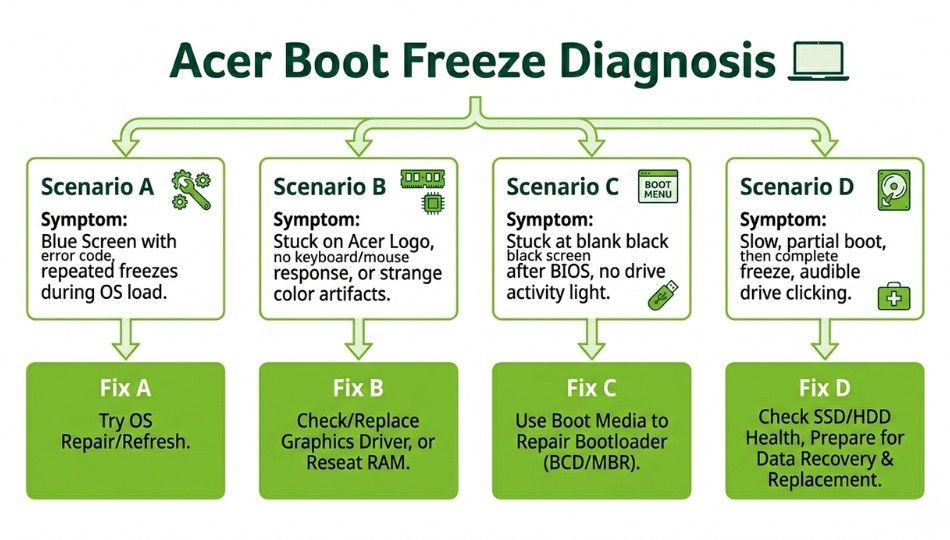
Try to match your issue to one of these common patterns:
Scenario A: Acer logo appears, spinning dots show up, then freeze
This often points to corrupted Windows files or a driver problem.
Scenario B: Acer logo appears, but no spinning dots ever show
This can suggest a BIOS, boot order, or drive detection issue.
Scenario C: The laptop enters Automatic Repair, then loops back again
This usually points to damaged boot files or a corrupted boot partition.
Scenario D: Black screen, but fans, lights, or keyboard backlight are on
This is often linked to display driver issues, RAM problems, or deeper hardware trouble.
Once you know the pattern, work through the steps below in order.
Step 1: Try the Pinhole Battery Reset
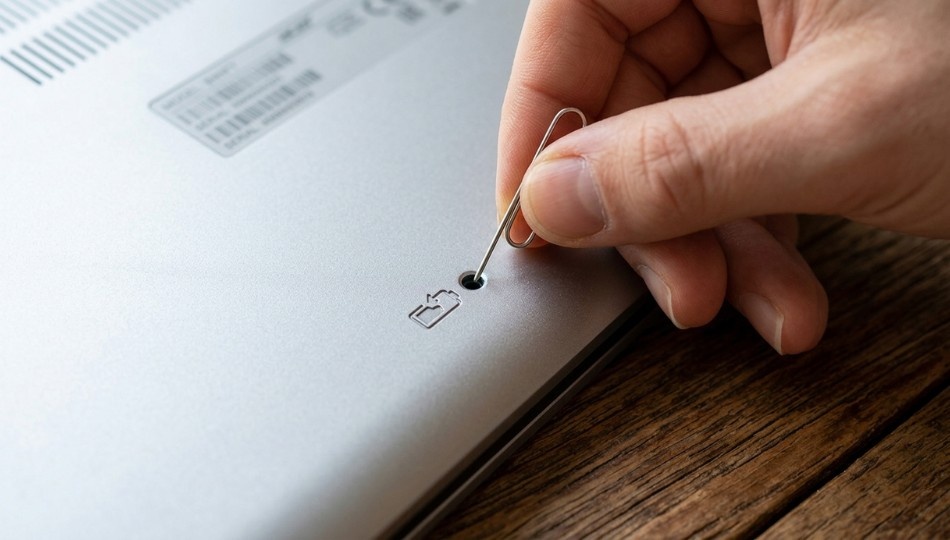
Many Acer laptops include a small battery reset pinhole on the bottom panel. It is usually marked with a battery symbol. This feature can help clear stuck power states that interfere with booting.
Straighten a paperclip and gently press it into the pinhole for about 5 seconds. After that, leave the laptop off for a few minutes, connect the charger, and power it on again.
This is one of the easiest fixes to try, and it is often skipped because people do not know it exists. If your model does not have a pinhole reset, move to the next step.
Step 2: Do a Hard Reset and Remove All Peripherals
External devices can cause boot problems more often than people expect. A faulty USB drive, SD card, external monitor, docking station, or even a wireless dongle can interfere with startup.
Acer’s official instructions describe shutting down, unplugging the adapter, holding the power button for 15 to 30 seconds, then reconnecting power.
Disconnect everything attached to the laptop. That includes:
- USB drives
- SD cards
- External hard drives
- Printers
- Monitors
- Keyboards and mice
- Phone charging cables
- Headsets
Now hold the power button for 20 seconds to fully shut the laptop down. Wait about a minute, then turn it back on with nothing connected.
If the laptop starts normally after this, reconnect your accessories one at a time until you find the one causing the issue.
Step 3: Open Windows Recovery Environment
If your Acer laptop is still stuck on the loading screen, the next step is to access Windows Recovery Environment, also called WinRE.
Here is how to force it open:
- Start with the laptop powered off.
- Turn it on.
- As soon as the Acer logo appears, hold the power button until the laptop shuts off.
- Repeat this process 2 or 3 times.
After several interrupted startups, Windows should open the Preparing Automatic Repair screen and then take you to recovery options.
Choose Advanced options. From there, you can use tools like Startup Repair, System Restore, Safe Mode, Command Prompt, and UEFI Firmware Settings.
Step 4: Run Startup Repair
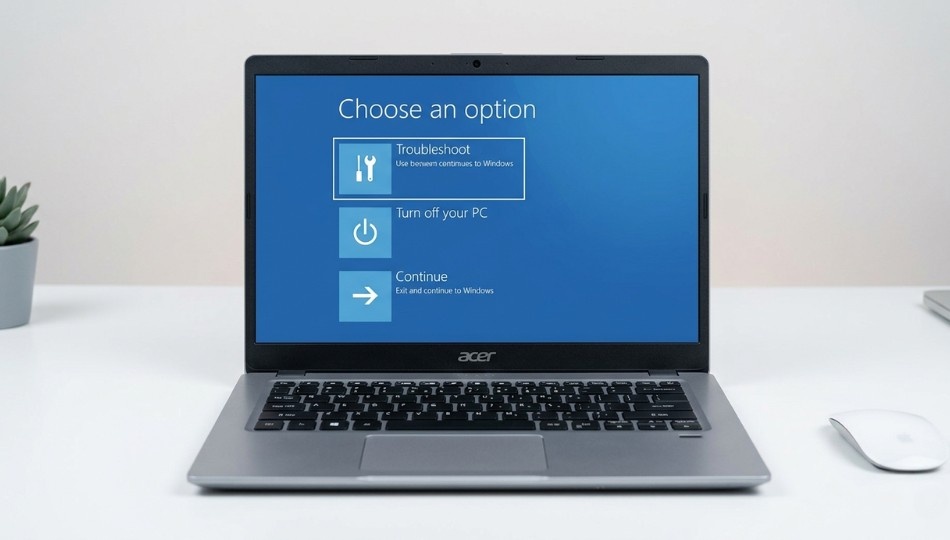
Inside WinRE, go to:
Troubleshoot > Advanced options > Startup Repair
Startup Repair scans for damaged boot files and tries to repair them automatically. Let it complete fully, even if it seems slow.
This is one of the safest repair tools because it focuses on startup problems without touching your personal files. If it works, great. If it fails and says it could not repair your PC, that still tells you something useful. It usually means the damage is too serious for automatic repair, and you should move on to the next step.
Step 5: Rebuild the Boot Record from Command Prompt
If Startup Repair does not fix the issue, the boot record may be damaged. You can rebuild it from the Command Prompt inside WinRE.
Go to:
Troubleshoot > Advanced options > Command Prompt
Then enter these commands one by one:
bootrec /fixboot
bootrec /scanos
bootrec /rebuildbcd
Press Enter after each command and wait for it to finish before typing the next one.
If bootrec /fixboot returns Access is denied, try this command first:
Then run bootrec /fixboot again.
These commands repair the master boot record and rebuild Boot Configuration Data. They are especially useful when the laptop keeps looping into repair mode or cannot find the Windows boot path correctly.
Step 6: Check BIOS Settings and Update Firmware
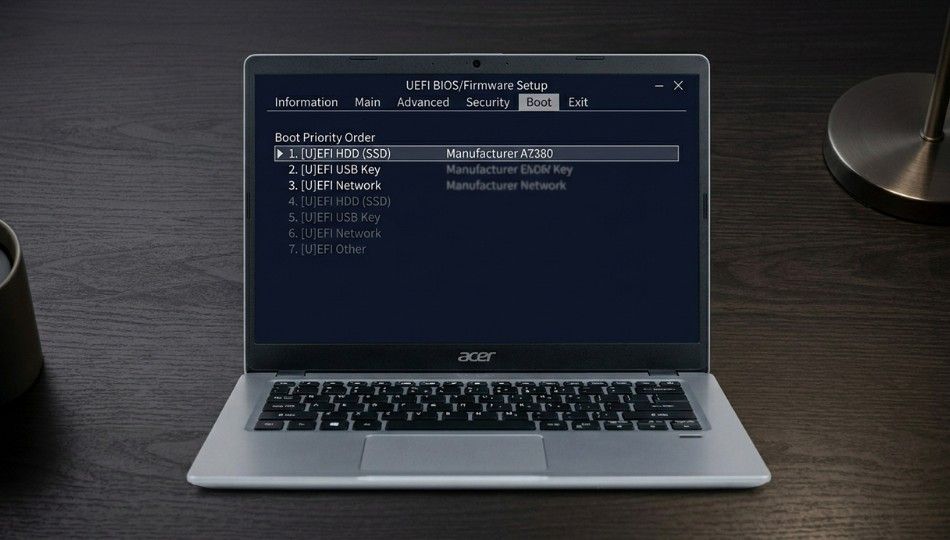
If your Acer laptop still will not load, check the BIOS or UEFI settings.
Turn the laptop off. Turn it back on and press F2 repeatedly as soon as it starts to enter BIOS.
Look for the Boot tab and confirm that your main SSD or hard drive is set as the primary boot device. If the laptop is trying to boot from USB, network, or another device first, it may never reach Windows.
A good next step is to load the default BIOS settings. In many Acer BIOS menus, you can press F9 to load setup defaults and F10 to save and exit.
While you are there, check whether the storage drive is detected at all. If the drive is missing, the issue may be hardware-related.
You should also compare your BIOS version with the latest firmware available for your exact Acer model on Acer’s support page. BIOS updates can improve compatibility after major Windows updates and resolve certain startup issues on affected models. Only update the BIOS if you can follow Acer’s instructions carefully, and your laptop is stable enough to complete the process.
Step 7: Boot into Safe Mode
Safe Mode is very useful because it starts Windows with only essential drivers and services. If your Acer loads in Safe Mode but not in normal mode, you are likely dealing with a driver or startup software problem.
In WinRE, go to:
Troubleshoot > Advanced options > Startup Settings > Restart
When the startup options appear, press F4 for Safe Mode.
If the laptop boots, open Device Manager and look for warning icons on hardware devices. Pay special attention to:
- Display adapters
- Storage controllers
- Chipset-related devices
Uninstall any recently broken or suspicious drivers, then restart normally. Graphics driver conflicts are especially common after Windows updates.
You can also turn off unnecessary startup apps while in Safe Mode to rule out software conflicts.
Comparing Your Fix Options: A Decision Guide
Here is a simple way to think about the main repair options:
| Fix Method | Best For | Risk Level | Data Safe | Time Needed |
|---|---|---|---|---|
| Pinhole Reset | Power state or static issue | Very Low | Yes | 5 minutes |
| Hard Reset with Peripheral Removal | USB or accessory conflict | Very Low | Yes | 5 minutes |
| Startup Repair | Mild boot file corruption | Low | Yes | 10 to 20 minutes |
| Bootrec Commands | Damaged boot record | Low | Yes | 15 minutes |
| BIOS Reset | Wrong boot settings | Low | Yes | 5 to 10 minutes |
| Safe Mode | Driver-related startup freeze | Low | Yes | 20 minutes |
| System Restore | Problem after update or driver install | Medium | Usually | 30 to 45 minutes |
| Factory Reset | Severe Windows corruption | High | No, unless you back up first | 1 to 3 hours |
A factory reset should not be your first move. It is the last option after safer repairs fail.
Real-World Results and Who This Works For
This step-by-step method works best when the problem started suddenly, especially after an update, a crash, or an interrupted shutdown. It is also a strong fit for Acer Aspire, Swift, Nitro, and Predator laptops that were working normally before the boot issue appeared.
In many cases, the laptop can be fixed without deleting personal files. That is why the order matters so much. Start with power resets and recovery tools before jumping to a wipe or repair shop.
That said, not every case is software-related. If the SSD is failing, if the drive does not appear in BIOS, or if the laptop shows deeper hardware symptoms like random shutdowns, beeping, or repeated black screens, software fixes may not be enough.
Common Mistakes That Make This Worse
One common mistake is forcing a restart after a restart without checking what kind of problem you have. That wastes time and can increase the risk of file corruption.
Another mistake is skipping the peripheral check. A simple USB device can block startup, and many people do not test this until much later.
A lot of users also reset Windows too early. That can erase files and still fail to solve the real problem if the cause is BIOS, driver, or hardware-related.
Ignoring the BIOS version is another missed opportunity. If the issue started after a major update, firmware compatibility should be checked.
Finally, many people copy a random fix from a forum without matching it to their actual symptoms. A laptop that freezes on spinning dots and a laptop that shows a black screen after the Acer logo may look similar, but the root cause can be very different.
FAQ: Acer Loading Screen Stuck
The most common causes are corrupted Windows boot files, failed updates, bad drivers, BIOS misconfiguration, or a failing SSD or hard drive.
Start with low-risk fixes like the pinhole reset, peripheral removal, Startup Repair, Safe Mode, and bootrec commands. These methods usually do not erase personal files.
Yes. Major updates can create driver conflicts or damage boot files if something goes wrong during installation.
Use Command Prompt in WinRE and run the bootrec commands to rebuild the boot record.
If the drive is missing in BIOS, the laptop makes unusual sounds, or recovery tools do not help, hardware becomes more likely.
No. A factory reset should be a last resort after you try safer repair options and back up anything important.
Safe Mode is often more useful for diagnosis than direct repair. If the laptop boots there, a driver or startup program is usually the cause.
That depends on the age of the laptop and whether the root cause is hardware. Check Acer warranty terms for your model before opening the device or paying for parts.
Three Things You Should Do Right Now
First, do not rush into a factory reset. Start with the easiest fixes, especially the pinhole reset, peripheral removal, and Startup Repair.
Second, protect your files. If you can reach recovery tools or another machine, back up your important data before trying high-risk repairs.
Third, check Acer’s support page for your exact model. BIOS and driver updates can make a real difference when an Acer laptop is stuck on the loading screen after a major Windows update.
If none of these steps work, the issue may be beyond home repair. At that point, professional diagnostics can confirm whether the SSD, RAM, or motherboard is causing the boot failure.
If the laptop boots normally but still shows graphics lag or screen problems, you may also want to know about turn off hardware acceleration.