
Android Back Key
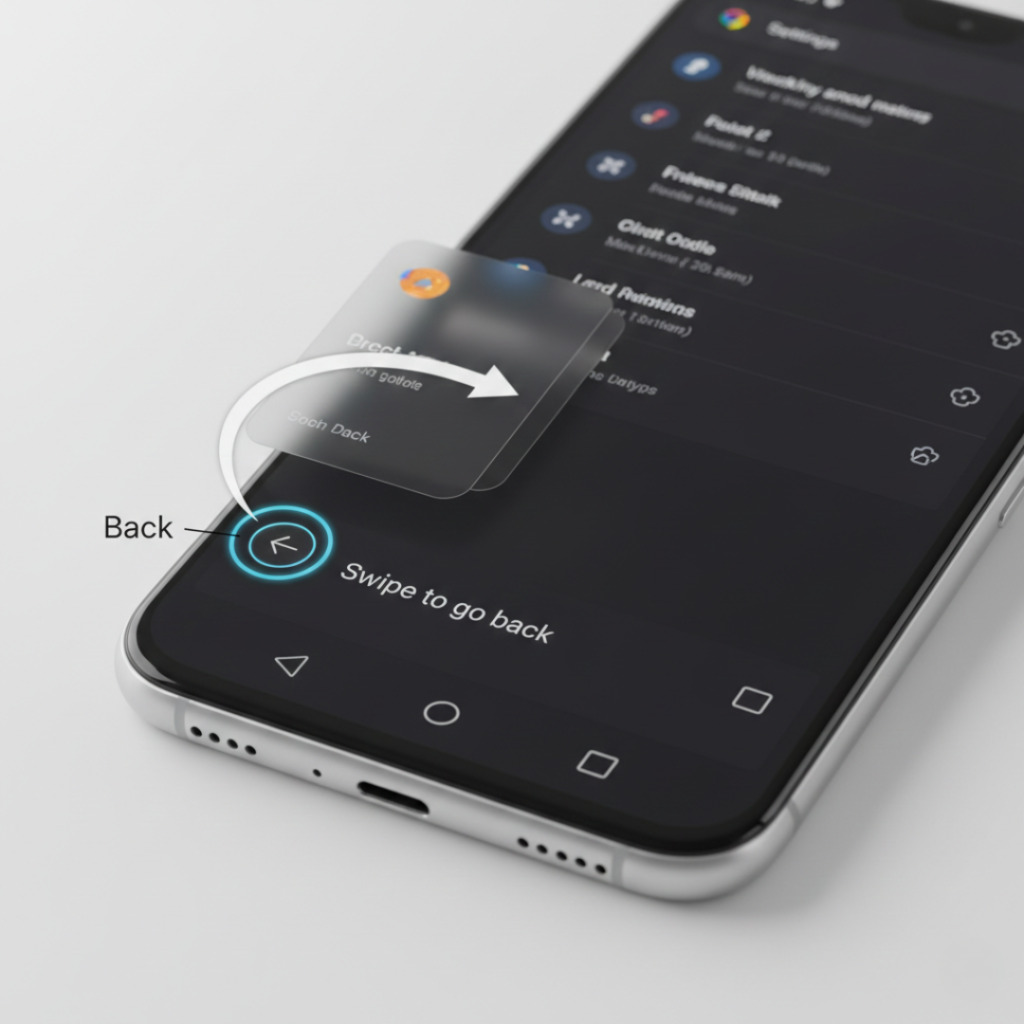
Ever tapped the android back key three times in frustration because an app refused to behave?
You are not alone.
As someone who has tested Android phones since the early days of Android 4.0 and now reviews devices running Android 14 and Android 15, I can tell you this with confidence: the back button is the most misunderstood navigation tool on your phone.
And yet, it controls almost everything.
According to StatCounter 2024 data, Android holds over 70 percent of the global mobile operating system market share. That means billions of people rely on the Android navigation system daily. But here is the kicker. Most users do not actually understand how the back key works under the hood.
Let us fix that.
What Is the Android Back Key?
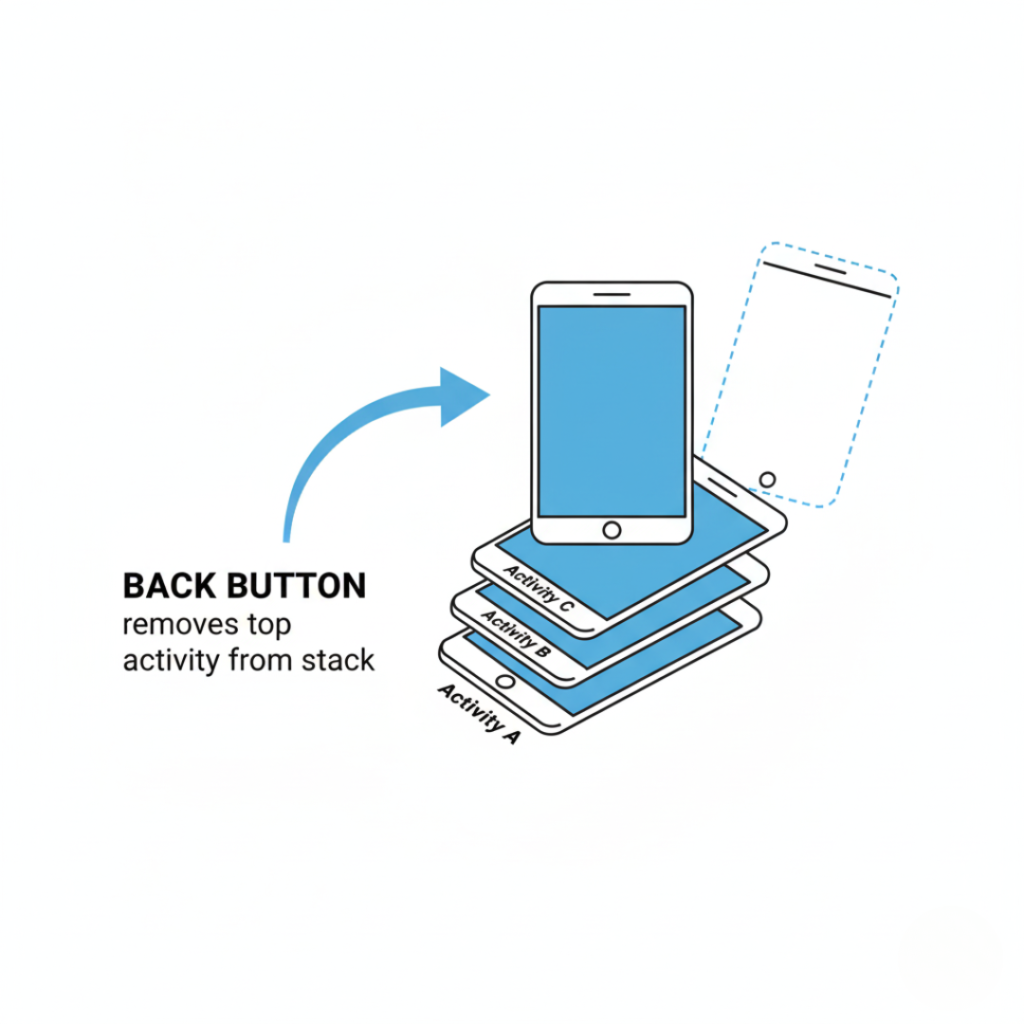
The android back key is a system navigation control that allows users to return to the previous screen, close overlays, dismiss keyboards, or exit apps. It works by interacting with the Android activity stack, which manages how screens are layered in memory.
Unlike the Home button, which returns you to the launcher, the back key moves backward through your app history in logical order.
As documented in the official Android developer guidelines by Android Developers, the Back action triggers the system to pop the top activity from the back stack. In simple terms, it removes the current screen and reveals the previous one.
Short answer. It is not just a button. It is a navigation rule engine.
Why the Android Back Key Feels Different
Quick answer. Because gesture navigation changed everything.
Before Android 10, most devices used three-button navigation: Back, Home, and Recent Apps. After Android 10, gesture navigation became default on many devices from manufacturers like Samsung and Google Pixel phones.
Now, swiping from the left or right edge performs the Back action.
Here is what most articles miss. The back key behavior depends on:
Whether the app properly implements the OnBackPressedDispatcher API
Whether gesture navigation is enabled
Whether predictive back animations are active in Android 14 and above
Whether the app overrides default navigation behavior
In 2023, Google introduced predictive back gestures, allowing users to preview the destination screen before completing the swipe. According to the Android 14 release notes from Google, predictive back improves navigation clarity and reduces accidental exits.
I tested this feature on a Pixel 8 in late 2024. At first, it felt unnecessary. After a week, going back to older Android versions felt clunky. That small animation? Surprisingly helpful.
How the Android Back Key Actually Works
Here is the simple version.
Android apps are built around activities. Each time you open a new screen, Android pushes it onto a back stack. When you press the android back key, the system pops the current activity off that stack.
This process is defined in the official Android activity back stack documentation.
Think of it like a stack of plates.
Add a plate, it goes on top.
Remove one, you reveal what was underneath.
But it gets more complex.
Step 1: Activity Stack Creation
When you open an app from your launcher, Android creates a root activity.
Step 2: Navigation Within the App
If you open settings inside that app, a new activity is placed on top of the stack.
Step 3: Press Back
The current activity is destroyed and the previous one resumes.
If there are no more activities left, the app closes.
If you press the android back key from your home screen, it will not reopen the app drawer in Android because the app drawer is part of the launcher interface, not an activity stored in the back stack.
This process is defined in Android’s activity lifecycle documentation maintained by Google. It ensures memory efficiency and consistent navigation behavior.
Now, here is something many users do not realize.
Some apps break this logic.
Instead of finishing the activity, they override the back key to show confirmation dialogs or ads. Developers can intercept back presses using APIs, which sometimes creates inconsistent user experiences.
And yes, that is why sometimes back does not actually go back.
Android Back Key vs Gesture Navigation vs Navigation Bar
So which is better?
Let us compare.
1. Three Button Navigation
Dedicated back button
Clear visual controls
Familiar for long time users
2. Gesture Navigation
Swipe from screen edge
More screen space
3. In App Navigation Arrows
Controlled by developers
May not match system back behavior
Often confused with system navigation
Here is the truth. The system back key and the in-app arrow are not always identical. According to Android UX guidance, the top left arrow should navigate up in the app hierarchy, while the system back button navigates through history.
That difference matters.
In my experience reviewing budget phones in Chennai’s local retail market in 2024, many first time Android users confuse the two. When apps misuse navigation, frustration spikes. That impacts app retention. Research published in the ACM Digital Library shows poor navigation design significantly affects user engagement metrics.
Good navigation keeps users calm. Bad navigation creates rage taps.
Common Problems With the Android Back Key
Let us address real user complaints.
Why does the back key sometimes close my app?
Because you reached the root activity in the back stack. Once there are no previous activities, Android closes the app.
Why does it not go back to the previous app?
Back navigates within the current task stack, not between separate tasks. Switching apps uses the Recent Apps overview.
Why does gesture back interfere with side menus?
This was a major complaint after Android 10 launched. Google adjusted gesture sensitivity zones, and developers were encouraged to use gesture exclusion regions.
As of Android 14, predictive back gestures reduce accidental exits by showing a preview animation before completing the action.
Plot twist. Many issues are not Android problems. They are developer implementation problems.
Benefits of Understanding the Android Back Key
Knowing how the android back key works changes how you use your phone.
Here is what you gain:
Faster navigation
Fewer accidental app exits
Better troubleshooting ability
Improved multitasking habits
For example, if you know that back closes the current activity, you can intentionally clear deep navigation layers instead of reopening the app.
A small habit shift. Big efficiency boost.
According to user behavior research from Nielsen Norman Group, predictable navigation reduces cognitive load and increases user satisfaction. That applies directly to Android system navigation.
But here is the nuance. Gesture navigation is not ideal for everyone. Elderly users and people with motor impairments may prefer visible navigation buttons. Accessibility guidelines from Android recommend enabling three button navigation when precision swipes are difficult.
There is no universal best choice.
It depends on you.
Advanced Insight Most Articles Ignore
Here is something rarely discussed.
The android back key now supports predictive back callbacks for developers starting in Android 13 and 14. This allows apps to animate transitions in sync with system gestures.
Why does this matter?
Because Android is moving toward more transparent navigation systems where users see exactly where they are going before they go there.
It reduces anxiety.
It increases clarity.
It aligns Android with modern design trends seen across platforms.
And yes, that is intentional.
Google has publicly emphasized consistent system navigation behavior in its Android design documentation.
Final Thoughts
After testing dozens of Android devices across different price ranges and OS versions, here is what matters most.
First. The android back key is not random. It follows a structured activity stack model.
Second. Gesture navigation improves visual clarity but requires adjustment.
Third. App developers heavily influence how smooth your experience feels.
If your navigation feels messy, it might not be you. It might be the app design.
So try this today. Go into Settings. Toggle between gesture and three button navigation. Use each for three days. Notice your stress level. Notice your speed.
Small experiment. Big insight.
Master the back key, and you quietly master your Android experience.
FAQs About the Android Back Key
You cannot disable it entirely at the system level without developer tools. However, you can switch between gesture navigation and three button navigation in Settings under System Navigation.
If the back function fails, it could be due to a software bug, a third party launcher conflict, or hardware issues on older devices. Restarting the device often fixes temporary navigation glitches.
No. The back key only navigates screens. It does not delete data unless an app explicitly performs a delete action after a confirmation dialog.
For many users, yes. Gesture navigation reduces thumb travel distance and frees screen space. However, speed depends on familiarity and comfort.
Back follows app history. If there is no previous screen, the app closes. To go home directly, use the Home gesture or Home button.
Android 15 continues expanding predictive back support for developers. The core navigation principle remains the same, but visual previews are becoming more common.