
Android Troubleshooting Guide
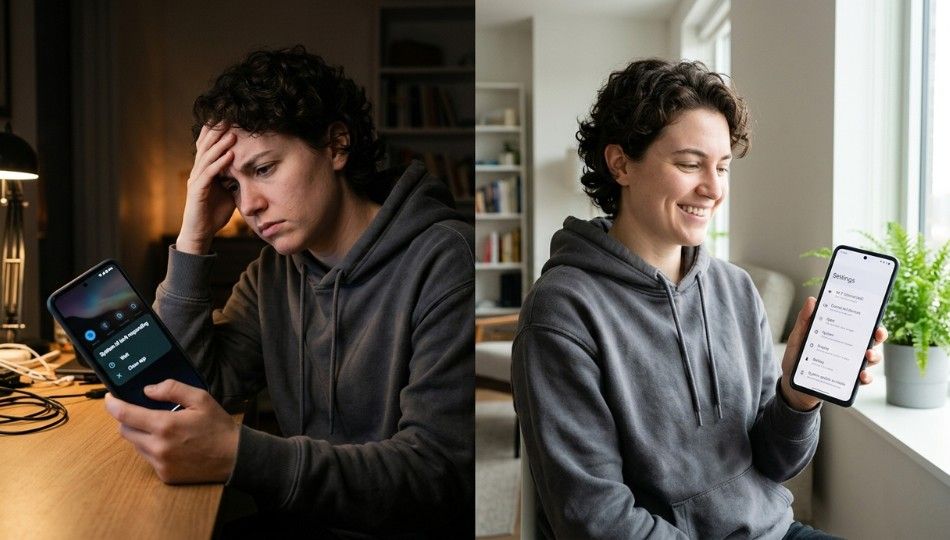
Your Android phone freezes during a call. The battery drops from 40% to 0%. An app crashes every time you open it. Sound familiar?
You’re not alone. With billions of Android users worldwide, these issues happen every day. The difference is how people handle them. Some rush to a repair shop. Others try random fixes from old forums and often make things worse.
This Android troubleshooting guide gives you a clear, step-by-step system to fix the most common Android problems and solutions without risking your data or wasting hours guessing.
Many users don’t realize Android has built-in multitasking features that let you open two apps at once something especially useful if you know how to use split screen on your Android tablet.
What Is an Android Troubleshooting Guide?
An Android troubleshooting guide is simply a structured way to find and fix problems on your phone.
Instead of trying random fixes, you:
Identify the exact issue
Test possible causes
Apply the right solution
This matters because Android isn’t the same on every phone. A Samsung device behaves differently from a Pixel or Xiaomi phone. Settings, updates, and background processes vary widely.
That’s why a proper guide focuses on how to think through the problem, not just what buttons to press.
Why Android Issues Got Harder to Fix in 2025 and 2026
If you feel like Android problems are getting worse you’re not imagining it.
Here’s what changed:
1. Updates are more complex (and sometimes buggy)
Recent updates have caused battery drain, lag, and app crashes on many devices. A phone that worked perfectly yesterday can act up right after an update.
2. Not all devices get updates at the same time
Some phones run the latest Android version, while others are stuck on older versions. This means:
A fix that works on one phone may fail on another
Security patches don’t reach everyone quickly
3. AI features are adding new conflicts
New Android versions now include AI-powered features. While helpful, they can:
Clash with apps
Create permission issues
Trigger unexpected errors
4. Manufacturer differences matter more than ever
Samsung, Pixel, Xiaomi, and Motorola all customize Android differently. So the same issue may need a different fix depending on your device.
The STOP Framework: A Smarter Way to Fix Android Phone Issues
Most people waste time because they don’t follow a system. They jump from one fix to another.
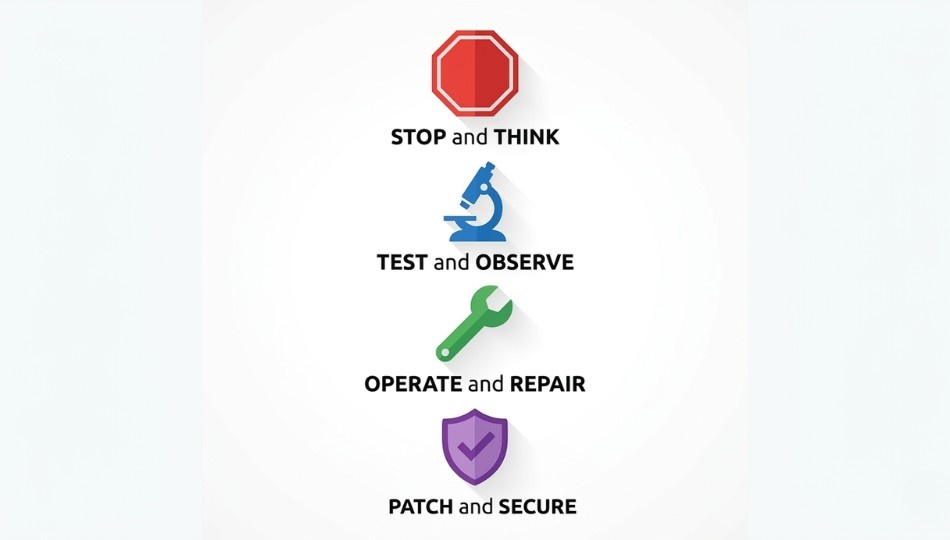
The STOP Framework helps you troubleshoot quickly and safely:
Stop → Test → Operate → Patch
Step 1: Stop and Identify the Exact Problem
Before changing anything, get clear on what’s happening.
Ask yourself:
When did the issue start?
Is it constant or occasional?
Did it begin after an update or new app install?
Example:
A phone randomly restarting might not be a hardware issue it could be a newly installed app.
Clarity here saves a lot of time later.
For example, if you think an app is missing, it may simply be in the app drawer rather than on your home screen.
Step 2: Test in Safe Mode First
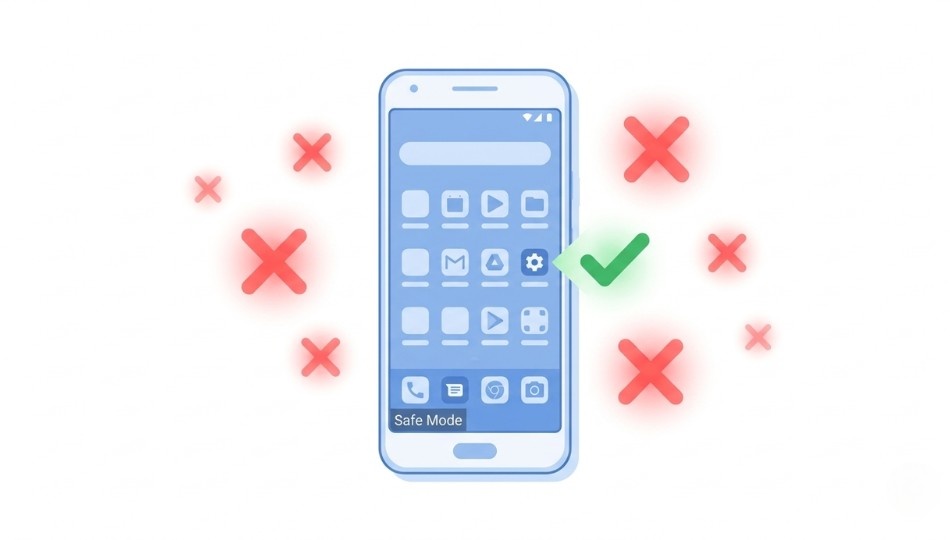
Safe Mode is one of the most powerful (and most ignored) tools.
It temporarily disables all third-party apps.
How to use it:
Press and hold the power button
Tap and hold “Power off”
Select Safe Mode
What to check:
If the problem disappears → an app is causing it
If the problem continues → it’s likely system-related
This step alone can narrow down the issue in minutes.
Step 3: Operate the Right Fix
Now that you know the cause, apply the correct fix.
For app crashes or freezing:
Go to Settings → Apps
Select the app
Tap Force Stop
Then Clear Cache
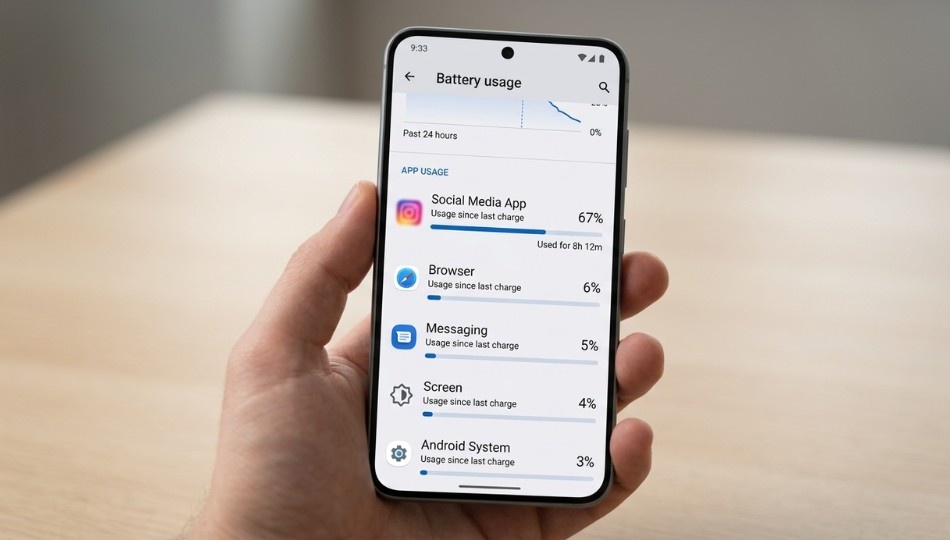
For battery drain:
Go to Settings → Battery → Usage
Look for apps using unusually high power
Restrict background activity if needed
For connectivity issues:
Reset network settings
Reconnect Wi-Fi and Bluetooth
The key here is targeted fixes not random actions.
If an app keeps freezing, force stopping it is often the quickest fix before trying deeper steps.
Sometimes the issue is indicated by a small icon in your status bar that many users overlook.
Step 4: Patch or Escalate
If nothing works yet:
Check for software updates
Install the latest security patch
Restart your phone
Updates often fix hidden bugs causing:
Slow performance
Random crashes
System instability
Only consider a factory reset if all other steps fail and always back up your data first.
Comparing Android Fix Methods: Which One Works Best?
Here’s a simple way to choose the right fix:
Soft Restart
Best first step. Quick and often effective.
Force Stop + Clear Cache
Ideal for fixing a single app issue.
Safe Mode
Best for detecting problematic apps.
Reset Network Settings
Use when Wi-Fi, Bluetooth, or mobile data fails.
Software Update
Fixes system-level bugs and security issues.
Clear System Cache
Useful on some devices for performance issues.
Factory Reset
Last resort only. Erases everything.
Repair Shop
Needed for hardware damage (screen, battery, charging port).
Two Common Myths Worth Clearing Up
Myth 1: Clearing cache always speeds up your phone
Not exactly. Cache helps apps run faster.
Only corrupted cache causes problems, so clear it only when needed.
Myth 2: Factory reset fixes everything
It doesn’t.
If the issue is hardware-related or tied to system bugs, resetting won’t help.
Real Results: What Fixing Android Issues Looks Like
Many Android problems look serious but aren’t.
For example:
A phone shutting down at 30 – 40% battery might seem like a battery failure.
But in some cases, it’s caused by:
Incorrect battery calibration
Fast charging conflicts
Background app drain
Fixing the real cause can restore normal performance without replacing the device.
In many cases, a quick check of screen time reveals which app is draining battery or running excessively in the background.
5 Mistakes That Make Android Problems Worse
Avoid these common errors:
1. Skipping updates
Sometimes the fix is just one update away.
2. Resetting network settings without saving passwords
You’ll lose all saved Wi-Fi credentials.
3. Clearing app data instead of cache
This logs you out and deletes settings.
4. Ignoring Safe Mode
It’s the fastest way to identify app-related issues.
5. Following the wrong guide for your device
Always match fixes to your phone brand and Android version.
Sometimes the issue isn’t the app at all it’s navigation. Misconfigured gestures or a faulty Android back button can make your phone feel unresponsive.
Three Things to Do Before You Panic
First: before you clear, reset, or visit a shop, try Safe Mode. It tells you within two minutes whether a third-party app is the culprit and most of the time, it is.
Second: check your security patch level before anything drastic. The March 2026 AOSP security update alone fixed active exploits causing genuine system instability on millions of devices.
A three-minute update has saved more phones than any factory reset I know of. Third: match your fix to your device. This Android troubleshooting guide works because it accounts for fragmentation what works on a Pixel won’t always work on a Galaxy, and vice versa.
If you’re still stuck after working through the STOP Framework, visit Google’s official support or Samsung’s support hub and search by your exact device model. You deserve a working phone and you’ve got more tools to fix it yourself than you probably think.
Frequently Asked Questions
Always start with a soft restart. Restarting clears RAM and temporary processes without erasing any data, and it resolves a surprising number of issues. If the problem persists after a restart, move to Safe Mode to determine whether an app is responsible. Think of restart as your zero-cost, zero-risk first attempt.
Random restarts are most commonly caused by a rogue app, an unstable OS update, or a failing battery. Boot into Safe Mode first if restarts stop, an app is the culprit. If restarts continue in Safe Mode, check Settings > Software Update for a pending patch. A battery that drops below healthy capacity can also trigger automatic restarts, especially on phones over two years old.
Work through the STOP Framework before ever touching factory reset: restart, Safe Mode, targeted cache clearing, and security patch updates. None of these steps erase your personal data. Only a factory reset or clearing individual app data affects stored content. Sync photos to Google Photos and contacts to your Google account before any deeper troubleshooting as a precaution.
Yes, and post-update battery drain is one of the most common android problems and solutions covered in 2025 and 2026 guides. After a major update, check Settings > Battery > Battery Usage to identify the top consumer. Temporarily disable Adaptive Battery, restrict background activity for problem apps, and wait 24 to 48 hours for the system to optimize itself. Clearing the cache partition on Samsung devices also helps clear residual update files.
Most software-related issues resolve within 10 to 30 minutes using structured android phone troubleshooting steps. A soft restart takes 60 seconds. Safe Mode diagnosis takes 2 minutes. Cache clearing takes under 5 minutes per app. A security patch update may take 10 to 15 minutes with a download. Factory reset if truly necessary takes 20 to 45 minutes plus backup time.
Clearing cache deletes temporary files the app created for faster loading it won't affect your settings or logins. Clearing data resets the app to factory state, removing all local settings, saved preferences, and login sessions. For troubleshooting, always try clearing cache first. Only clear data if cache clearing doesn't help, and be ready to log back in from scratch.
Software problems usually disappear in Safe Mode, respond to cache clearing, or improve after a patch update. Hardware problems charging failure, display damage, dead speakers, no cellular signal despite correct settings persist regardless of what software steps you take. If Safe Mode doesn't change anything and a fresh OS install doesn't help, you're looking at hardware. That's when professional repair makes sense.
Yes, with caveats. Verify the guide was published or updated within the past 12 months and specifies your device brand and Android version. Android differs significantly between manufacturers Samsung One UI, stock Android (Pixel), and Xiaomi MIUI have different settings paths and behaviors. For security-related fixes, always cross-reference with the official Android Open Source Project (AOSP) bulletins at source.android.com.