
Computer Screen Shadow Problem
Computer Screen Shadow Problem: Why Your Display Looks Haunted (And How to Fix It Fast)
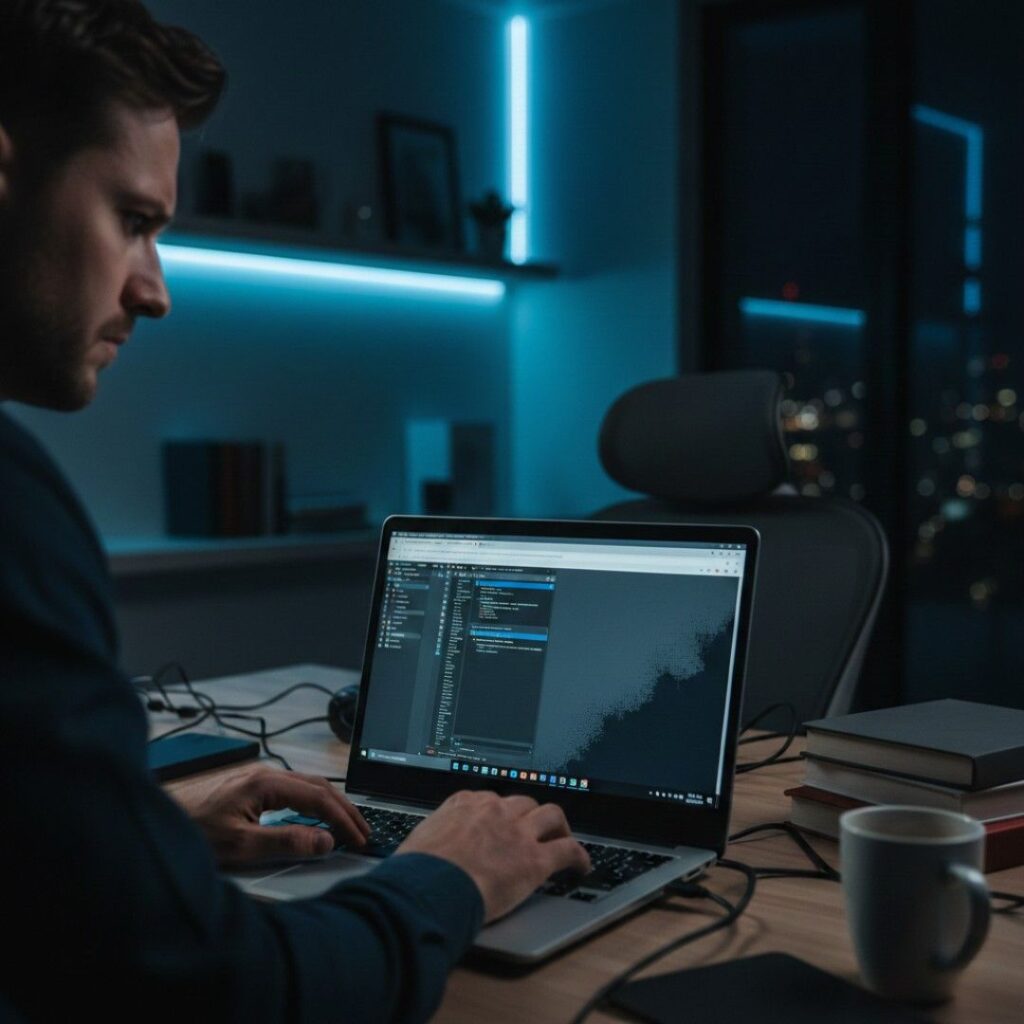
Ever opened your laptop and noticed a weird dark patch in the corner? Or a faint “shadow” that won’t go away – even after you close every app?
That’s the computer screen shadow problem, and if you’re dealing with it right now, I get the frustration. As someone who’s worked in IT support and digital publishing for over a decade, I’ve seen everything from harmless image retention to full-blown LCD panel failure. And trust me-the difference matters.
Here’s what’s actually going on, what most articles don’t explain, and how to fix it without wasting money.
What Is the Computer Screen Shadow Problem? (Snippet-Ready Definition)
The computer screen shadow problem is a display issue where dark patches, ghost images, uneven brightness, or shadow-like areas appear on a monitor or laptop screen. It’s usually caused by backlight failure, image retention (burn-in), pressure damage, GPU glitches, or loose display cables. The fix depends on whether the problem is hardware-based or software-related.
Why the Computer Screen Shadow Problem Happens (And Why It’s More Common in 2025)
Quick answer: Modern displays are thinner, brighter, and more fragile than ever.
According to IDC’s 2024 PC Market Report, over 262 million PCs shipped globally in 2024 alone, many using ultra-thin LED or OLED panels. Thinner panels mean tighter component tolerances – and that increases vulnerability to pressure marks, backlight inconsistencies, and thermal stress.
Now let’s break down the real causes.
1. Backlight Bleed or LED Failure
Most LCD monitors use LED backlighting. When individual LEDs dim or fail, you’ll see shadow-like dark zones.
The U.S. Department of Energy explains that LED backlighting is highly efficient but sensitive to thermal stress over time (energy.gov). Heat buildup – especially in laptops – can degrade uniformity.
Plot twist: This isn’t always “damage.” Sometimes it’s just panel aging.
2. Image Retention (Temporary Burn-In)
OLED and IPS panels can temporarily “remember” static images.
Research from RTINGS.com (2024 long-term burn-in test) shows OLED displays are more susceptible to permanent burn-in when static UI elements remain for thousands of hours. But temporary image retention? That can happen in days if brightness is maxed out.
I once worked with a graphic designer who left Adobe Illustrator open for 12 hours a day. The toolbar ghosted into the background for weeks. It eventually faded – but it was terrifying.
3. Pressure or Physical Damage
This is more common than people admit.
Closing a laptop with earbuds on the keyboard. Carrying it in an overstuffed backpack. Even pressing too hard while cleaning.
Liquid crystal displays (LCDs), as explained by Encyclopaedia Britannica (britannica.com/technology/liquid-crystal-display), rely on precise pixel alignment. Physical pressure disrupts that alignment permanently.
And yes – I’ve made this mistake.
4. GPU or Driver Issues
Not all screen shadows are hardware-related.
Microsoft’s official support documentation (support.microsoft.com) notes that corrupted display drivers can cause:
Flickering dark zones
Brightness inconsistency
Partial rendering shadows
If the “shadow” moves when you resize windows, that’s usually software.
But here’s where it gets interesting…
Most online guides lump all shadow problems together. That’s a mistake. Because the fix for burn-in is completely different from the fix for backlight failure.
If you’re noticing other symptoms alongside the shadow like flickering, lag, or random display glitches it’s worth stepping back and running a full system check. In many cases, these issues are connected. I’d recommend starting with a broader diagnostic using our basic troubleshooting for pc which walks through hardware checks, driver resets, and performance fixes that often resolve hidden root causes.
Let’s diagnose this properly.
How to Fix the Computer Screen Shadow Problem (Step-by-Step Diagnosis)
Before you panic and order a new display panel, run this quick framework I use with clients.
Step 1: Take a Screenshot
Press Print Screen (Windows) or Shift + Command + 4 (Mac).
If the shadow appears in the screenshot → It’s software (GPU or driver).
If it doesn’t → It’s hardware.
Simple. Powerful.
Step 2: Connect an External Monitor
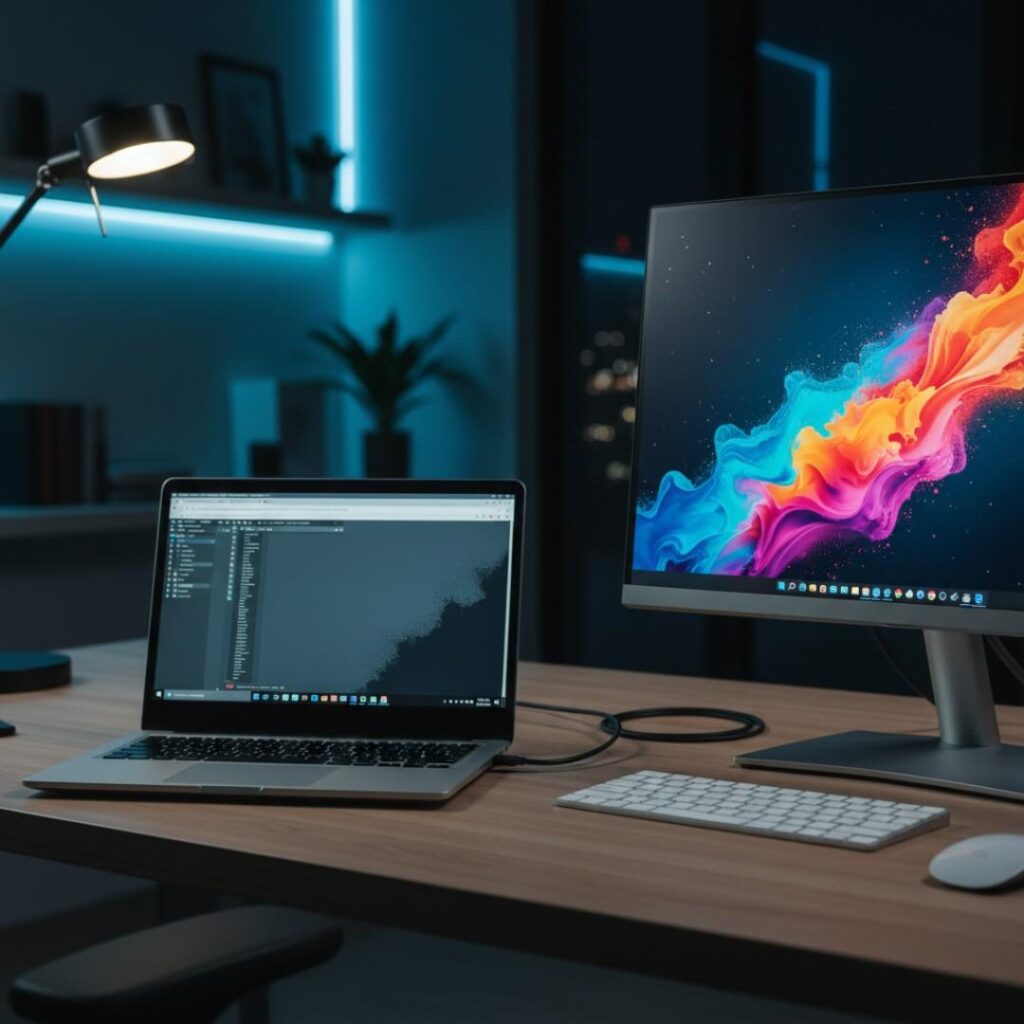
Plug your laptop into another screen.
Shadow appears on both screens? GPU issue.
Only on laptop screen? Panel or backlight.
I’ve seen companies replace screens when it was just a corrupted Intel graphics driver. Don’t be that person.
Step 3: Run a Solid Color Test
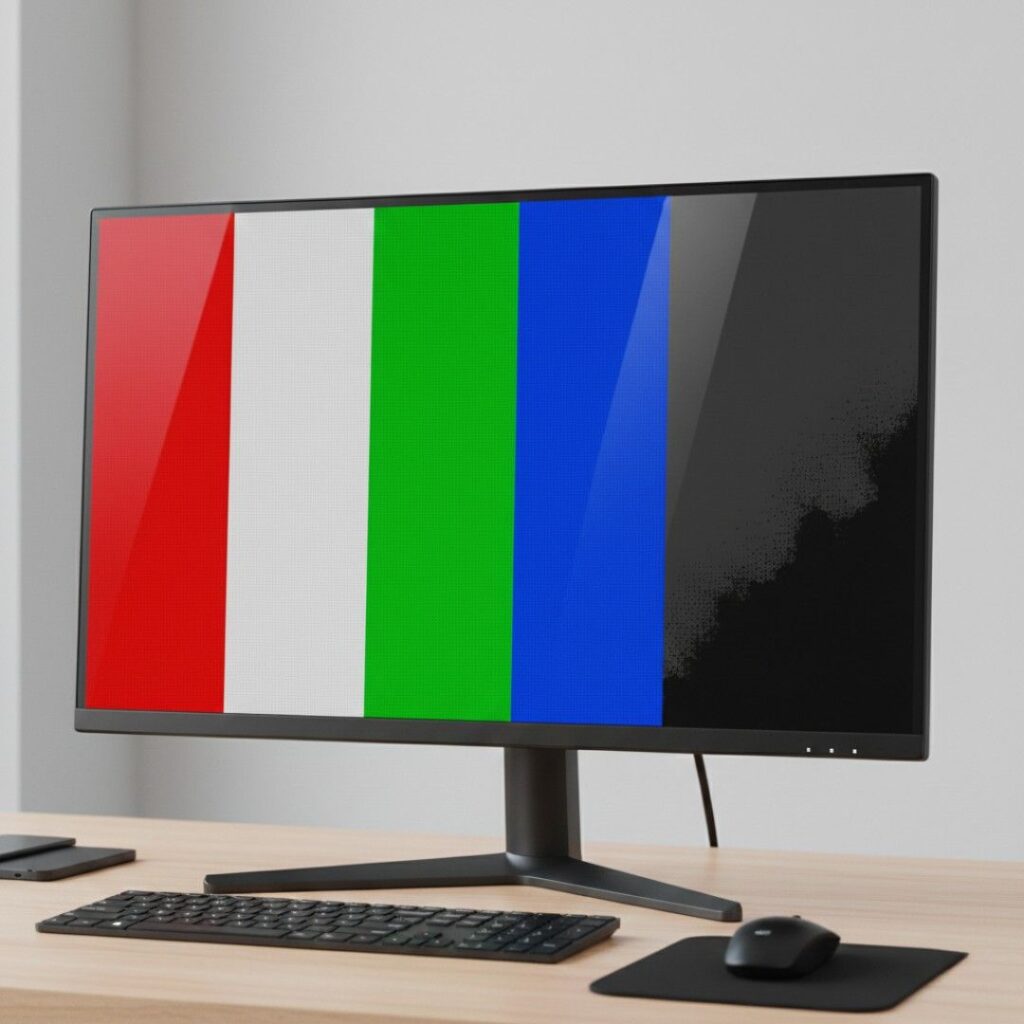
Open a full-screen red, blue, white, and black image.
Look for:
-
Uneven brightness
-
Permanent dark blotches
-
Ghost outlines
Step 4: Update or Reinstall Graphics Drivers
Go to:
NVIDIA: nvidia.com/Download
AMD: amd.com/support
Intel: intel.com/content/www/us/en/download-center
Driver corruption is more common after major Windows updates (especially post-2024 cumulative patches).
Step 5: Pixel Refresh (For OLED Displays)
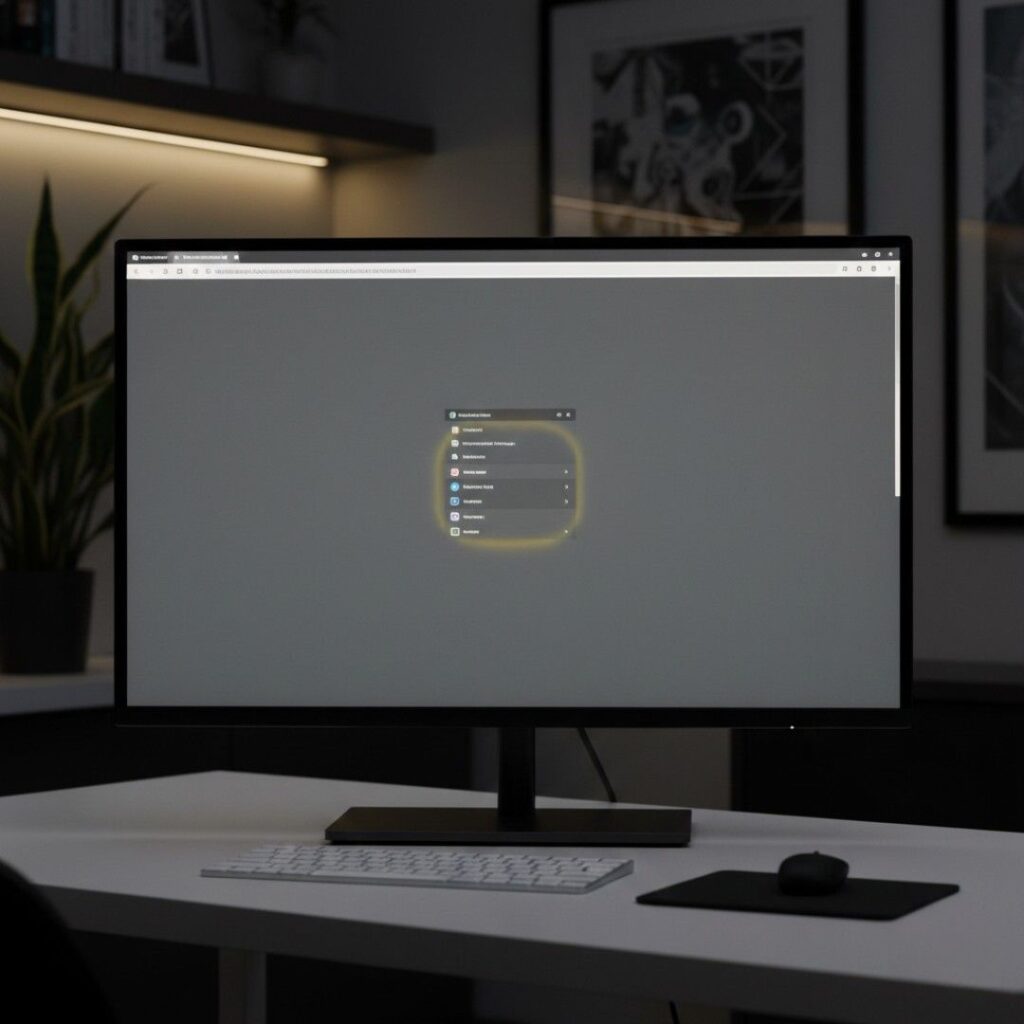
Many OLED monitors include a pixel refresh function in settings.
According to LG’s official OLED support documentation (lg.com), pixel refresh cycles recalibrate subpixels to reduce image retention. It won’t fix permanent burn – in – but it often resolves temporary shadows.
Quick Fix Summary (Featured Snippet Format)
To fix the computer screen shadow problem:
Take a screenshot to check if it’s software-related.
Test with an external monitor.
Run a full-screen color test.
Update graphics drivers.
Use pixel refresh if using OLED.
If none of these work, the panel likely needs replacement.
Hardware vs Software Shadow Issues: What’s the Real Difference?
This is where people get confused.
| Issue Type | Cause | Fix Difficulty | Cost |
|---|---|---|---|
| Image Retention | Static content | Easy | Free |
| Driver Glitch | Software corruption | Easy | Free |
| Backlight Failure | LED degradation | Moderate | $100–$300 |
| Panel Pressure Damage | Physical impact | Hard | $200–$600 |
Here’s my honest take:
If your laptop is over 4 years old, replacing the entire device may be more cost-effective than replacing the panel.
Consumer Reports (consumerreports.org) notes that average laptop lifespan is 3–5 years depending on usage. After that, screen repairs often exceed residual value.
Hard truth – but important.
When You Should Replace the Screen (And When You Shouldn’t)
Let’s make this practical.
Replace the screen if:
Dark patches are growing
Lines appear with pressure
Color distortion spreads
The issue remains across BIOS screen (not just Windows)
Don’t replace it if:
-
Shadow disappears after restart
-
It shows up in screenshots
-
External monitor shows same issue
-
It fades over days
One client of mine nearly replaced a MacBook Pro screen because of a “shadow.” It turned out to be True Tone brightness miscalibration.
In some cases, screen defects may appear differently, such as a black line on a Dell laptop screen.
Real-World Case Studies
Case #1: The Designer in Austin, Texas
A 32-year-old UX designer noticed a toolbar-shaped shadow. OLED monitor. Static UI.
Solution? Pixel refresh + lowering brightness from 100% to 70%.
Shadow faded in 9 days.
Case #2: The College Student in Chicago
Laptop screen showed bottom-corner darkening. Didn’t appear in screenshots.
Diagnosis: Backlight failure from heat exposure (gaming on soft bedding blocks ventilation).
Panel replacement cost: $180.
Case #3: Corporate Office in Seattle
15 monitors showed shadow patches after a Windows update.
Cause: Intel driver bug (2024 Q3 patch issue).
Solution: Driver rollback. Fixed in 20 minutes.
Benefits of Fixing the Computer Screen Shadow Problem Early
Why act quickly?
Because display issues tend to escalate.
Early fixes:
Prevent full panel failure
Improve eye comfort (uneven brightness strains vision)
Maintain resale value
Avoid GPU stress
According to the American Optometric Association (aoa.org), prolonged exposure to uneven screen brightness can worsen digital eye strain symptoms.
Small issue today. Bigger one tomorrow.
Final Thoughts: Don’t Guess—Diagnose
After 10+ years troubleshooting display problems, here’s what I’ve learned:
First: Always test software before assuming hardware failure.
Second: OLED shadows often fade – give them time.
Third: If shadows grow or distort color, replacement is likely inevitable.
The computer screen shadow problem isn’t one issue – it’s five different issues disguised as one symptom.
Run the tests. Diagnose properly. Then decide.
If you’re dealing with this right now, try the screenshot test first. It takes 10 seconds and could save you hundreds of dollars.
And if you’ve fixed a shadow issue in a creative way, I’d genuinely love to hear it. Share your experience – someone else is probably staring at a haunted screen tonight wondering what went wrong.
FAQs About the Computer Screen Shadow Problem
It’s usually caused by backlight degradation or pressure damage. If it doesn’t show in screenshots, the issue is hardware-related and may require panel repair.
Temporary image retention can fade over hours or days. Permanent burn-in or physical damage will not self-correct.
Driver-related fixes are free. Panel replacements typically range from $100–$600 depending on device model.
Only if the shadow appears on multiple displays or in screenshots. Otherwise, it’s likely panel-related.
OLED panels are more prone to burn-in and image retention, especially with static UI elements. LCD panels more commonly suffer from backlight bleed.
Yes. Excessive heat can degrade LED backlights and internal display layers over time.