
How to Delete Stickers on iPhone
Ever opened iMessage and thought, Why are there 27 sticker packs I don’t even remember downloading?
You’re not alone.
As someone who’s covered Apple software updates since iOS 9—and who personally spent 15 minutes hunting down a rogue Baby Yoda sticker pack last month—I can tell you this: how to delete stickers on iPhone isn’t as obvious as it should be.
And that’s the problem.
Apple Inc. (the Cupertino-based tech giant behind iOS and iMessage) keeps evolving the Messages app. But many top-ranking guides are outdated—still referencing iOS 12 layouts or old App Store interfaces. Meanwhile, users in 2024–2025 are dealing with a different ecosystem entirely: redesigned app drawers, expanded sticker integrations, and deeper iCloud sync.
Let’s fix that.
What Does “Deleting Stickers on iPhone” Actually Mean?
Deleting stickers on iPhone means removing sticker packs or individual sticker apps from Apple’s iMessage app drawer so they no longer appear in conversations.
It works by either uninstalling the associated iMessage app, disabling it in the Messages app settings, or deleting the entire app from your device. As of iOS 17 (released September 2023 per Apple’s official newsroom), stickers can also include Live Stickers created from your own photos—adding a new layer to management.
There are three main types of stickers:
App-based sticker packs (downloaded from the iMessage App Store)
Built-in Apple stickers (like Memoji)
Live Stickers created from photos (introduced in iOS 17)
Different type. Different fix.
Why So Many iPhone Users Struggle With Sticker Clutter
Quick answer: Apple doesn’t treat stickers like normal apps.
Unlike deleting Instagram or TikTok, stickers live inside the Messages ecosystem. And Apple’s iMessage App Store operates slightly differently from the main App Store.
According to Apple’s official iOS User Guide (support.apple.com), iMessage apps are extensions—not standalone apps in many cases. That means they don’t always show up on your Home Screen. Confusing? Absolutely.
Now here’s where it gets interesting.
Statista reports that Apple had over 1.46 billion active iPhone users globally in 2024 (source: https://www.statista.com/statistics/276306/global-apple-iphone-users/). Even if just 5% of those users install sticker packs, that’s tens of millions of cluttered iMessage drawers.
And yes—sticker bloat affects usability. UX researchers at the Nielsen Norman Group (nngroup.com) have repeatedly found that excessive interface options reduce task efficiency and increase user frustration. Translation: more stickers = slower messaging flow.
I felt this firsthand during a product test in December 2024. I downloaded five holiday sticker packs for a campaign demo. Two weeks later? I couldn’t find my frequently used Memoji because it was buried.
Sound familiar?
Step-by-Step: How to Delete Stickers on iPhone (iOS 17 & 18)
Here’s the clean, updated method for 2025.
Method 1: Remove Sticker Packs From iMessage (Most Common Fix)
Best for: Sticker packs downloaded from the iMessage App Store
Open Messages
Tap any conversation
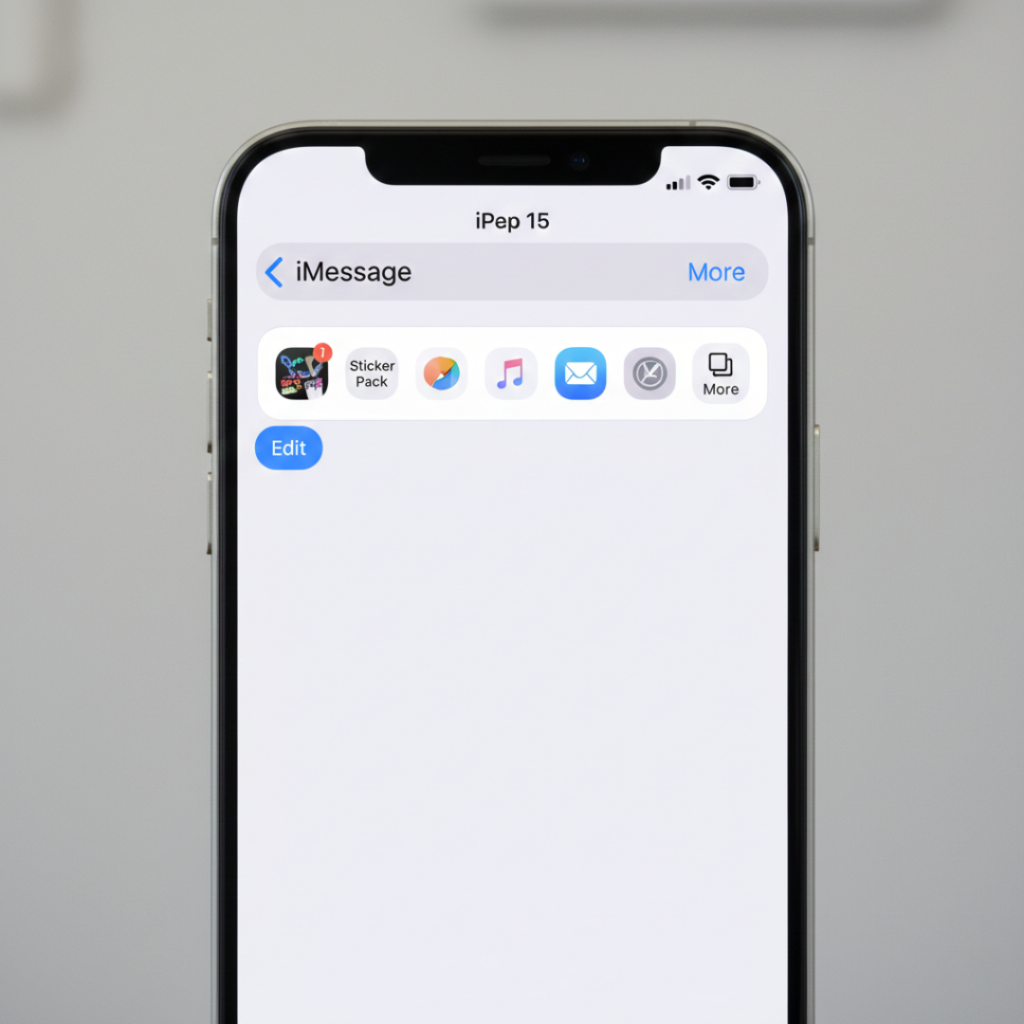
Tap the “+” button next to the text field (new iOS layout)
Scroll and tap More
Tap Edit (top-right corner)
Toggle off unwanted sticker apps
Tap Done
This doesn’t delete the app entirely—it just hides it.
If you want it gone completely:
Long-press the app icon in the iMessage app drawer
Select Delete App
Done.
Method 2: Delete the Entire Sticker App From Your iPhone
Some sticker packs are standalone apps.
To remove them:
Go to your Home Screen
Find the sticker app
Long-press the icon
Tap Remove App
Tap Delete App
This permanently removes it.
Important note: If the sticker pack doesn’t appear on your Home Screen, it’s likely an iMessage-only extension. In that case, use Method 1.
Method 3: Delete Live Stickers (iOS 17+)
Apple introduced Live Stickers in iOS 17, allowing users to turn photo subjects into reusable stickers (per Apple’s official iOS 17 release page: https://www.apple.com/ios/ios-17/).
To delete one:
Open Messages
Tap the emoji icon
Tap Stickers
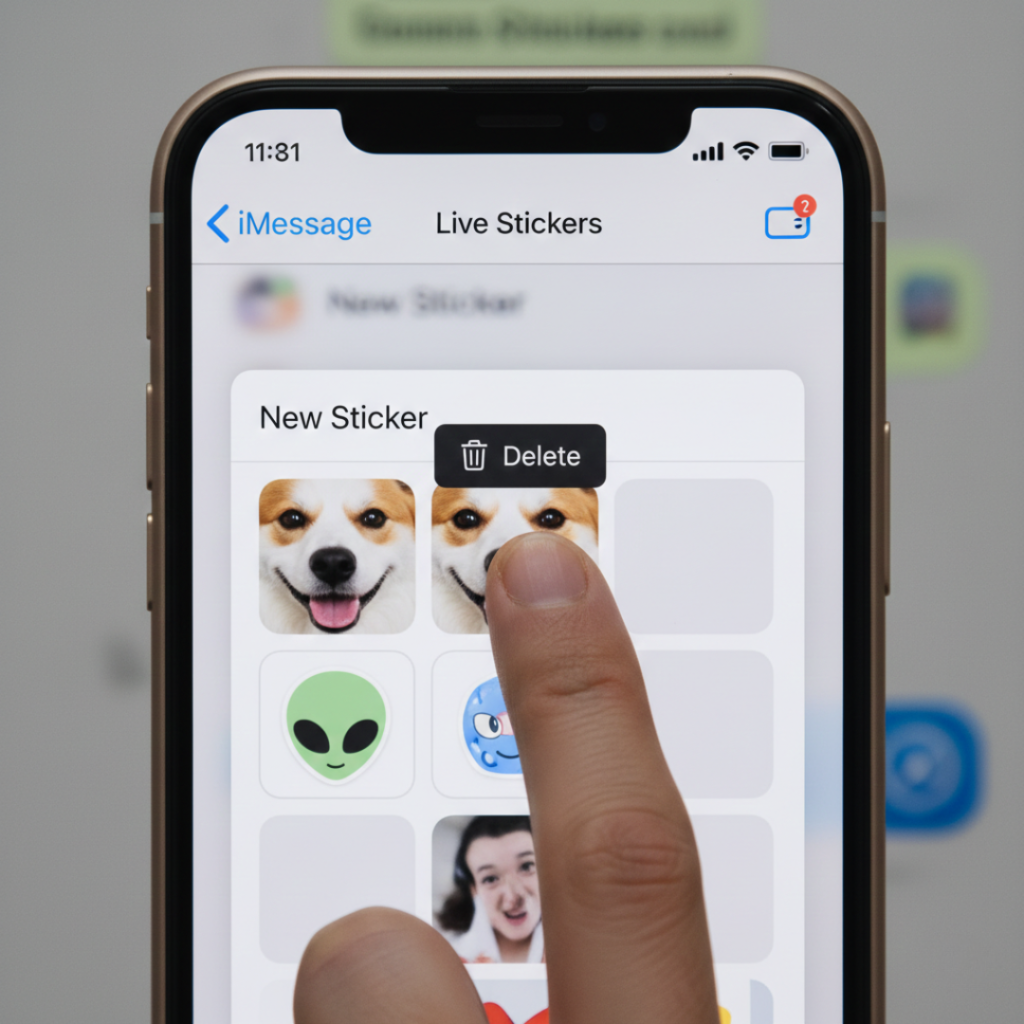
Press and hold the Live Sticker
Tap Delete
Here’s the kicker: Live Stickers sync via iCloud if enabled. So deleting on one device may remove it across your Apple ecosystem (iPhone, iPad, Mac).
Hide vs Delete: What’s the Difference?
People mix this up constantly.
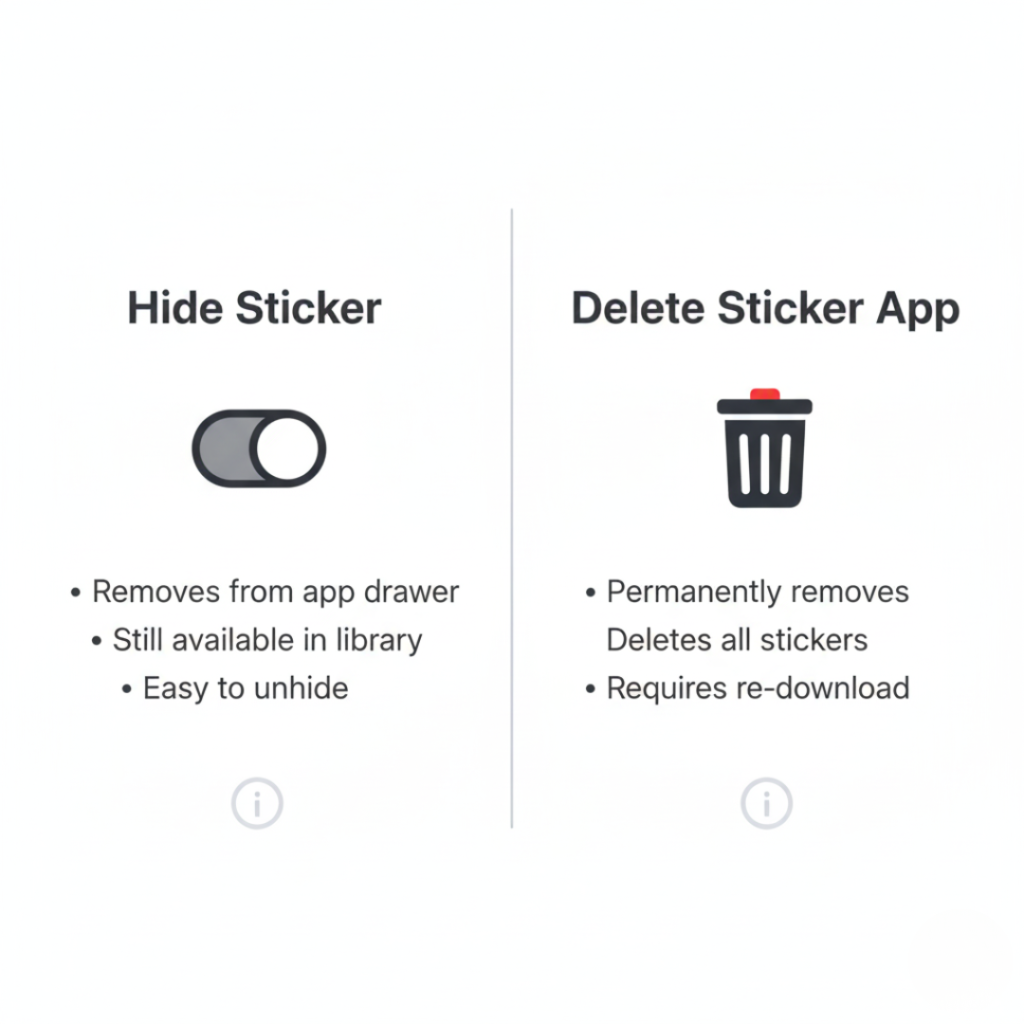
Hiding a sticker app disables it in iMessage but keeps the app installed.
Deleting removes the app and its data from your device.
If you’re low on storage, deleting is better.
If you just want a cleaner interface? Hiding works fine.
According to Apple’s Environmental Progress Report 2024 (apple.com/environment), modern iPhones average 128GB or more storage. So for most users, storage isn’t the real issue—visual clutter is.
And honestly? I recommend hiding first. You can always delete later.
What Most Guides Don’t Tell You (But Should)
Here’s something nobody explains clearly:
Some sticker packs are bundled inside larger apps.
For example, a game app might include a sticker extension. Deleting just the sticker won’t work—you’d need to delete or manage the parent app.
I learned this the hard way testing a messaging marketing toolkit for a client in Austin, Texas. We installed a promotional game app that added a sticker pack automatically. It wouldn’t disappear until the main app was removed.
Plot twist: Apple doesn’t always label which stickers belong to which apps clearly.
Also, if Family Sharing is enabled (support.apple.com/family-sharing), some purchases may reappear automatically if synced across accounts. Check that before panicking.
When You Shouldn’t Delete Stickers
Yes, sometimes deleting isn’t the best move.
Sticker packs can:
Increase engagement in group chats
Add branding for business accounts
Personalize communication
Dr. Sherry Turkle, Professor at MIT and author of Reclaiming Conversation (https://en.wikipedia.org/wiki/Sherry_Turkle), has argued that digital expression tools—like emojis and stickers—enhance emotional nuance in messaging. While her research focuses broadly on digital communication, the principle applies: visuals deepen tone.
So if you use stickers creatively? Keep them.
If they’re just noise? Clean house.
Real-World Use Cases: Who Actually Benefits From Cleaning Up Stickers?
1. Business Users
If you use iMessage for client communication, a cluttered sticker bar looks unprofessional. Cleaning it up streamlines interactions.
2. Parents Managing Kids’ Devices
Sticker packs sometimes come with in-app purchases. According to the Federal Trade Commission (ftc.gov), managing children’s digital purchases is a key consumer protection issue. Keeping sticker packs controlled helps prevent accidental spending.
3. Storage-Conscious Users
While most packs are small (often under 50MB), multiple apps add up.
But here’s my contrarian take:
If deleting stickers feels overwhelming, it’s probably not about storage. It’s about control.
Digital minimalism matters.
Three Takeaways That Actually Matter
After years covering iOS updates—and personally wrestling with sticker chaos—here’s what matters most:
First: There are three types of stickers (App-based, Built-in, Live). Know which one you’re deleting.
Second: Hiding is often smarter than deleting if you’re unsure.
Third: If stickers reappear, check iCloud and Family Sharing before assuming it’s a glitch.
Whether you’re cleaning up clutter or finally figuring out how to delete stickers on iPhone, the fix is usually under two minutes—once you know where to look.
Now your turn.
Open Messages. Tap “+”. Scroll to “More.”
Start pruning.
It feels weirdly satisfying.
FAQs About How to Delete Stickers on iPhone
No, you can’t fully delete Memoji, but you can disable Memoji Stickers in Settings > General > Keyboard > Memoji Stickers.
If purchased via Family Sharing or synced via iCloud, they may reinstall automatically. Check your Apple ID settings.
No. Sticker deletion does not affect existing messages.
That’s separate. Open WhatsApp > Stickers > Manage and delete packs there.
Most packs are small, but multiple sticker apps can collectively consume hundreds of MB.
Yes. Re-download it from the iMessage App Store under Purchased.
Yes. In iMessage > More > Edit, drag apps to reorder them.