
How to Force Close an Application on Windows
How to Force Close an Application on Windows (When Nothing Else Works)

Ever clicked the X button ten times and the app just… stared back?
You move the mouse. Nothing.
Keyboard? Dead.
Fans spinning like a jet engine.
We’ve all been there. And yes, learning how to force close an application on Windows is basically a survival skill now.
I’m a systems support consultant who’s handled corporate desktops since 2012, and the number one panic call I still get in 2026 is simple:
“My PC froze. What do I do without restarting?”
Good news: you almost never need a full reboot anymore. Modern Windows is designed to isolate misbehaving programs. You just need to speak its language.
Let’s do that.
Quick Definition
Force closing an application on Windows means terminating a program manually when it stops responding. It works by ending the process from the operating system level instead of waiting for the software to shut down normally. Windows isolates apps as processes, so killing one usually won’t affect the rest of the system.
Why Apps Freeze More Often Today (and why that matters)
Short answer: software got heavier faster than PCs got smarter.
According to StatCounter’s 2025 desktop report, Windows still powers over 68 percent of global PCs, and most machines now run 20 to 60 background processes simultaneously. Meanwhile, research from the U.S. National Institute of Standards and Technology notes memory contention as a leading cause of software unresponsiveness in multitasking systems.
Translation?
Your browser alone might use 3 GB RAM. Add video calls, design tools, sync services and suddenly one bad process blocks the queue.
Here’s what changed compared to 2019:
Apps rely on cloud syncing constantly
Electron apps behave like mini browsers
Background auto updates run silently
GPU acceleration causes driver conflicts
Plot twist: freezes are often not crashes.
They’re deadlocks. The program waits for something that never responds.
So clicking “Close” politely won’t work.
You must intervene.
The 4 Reliable Ways to Force Close Programs in Windows
This is the practical section. Bookmark it.
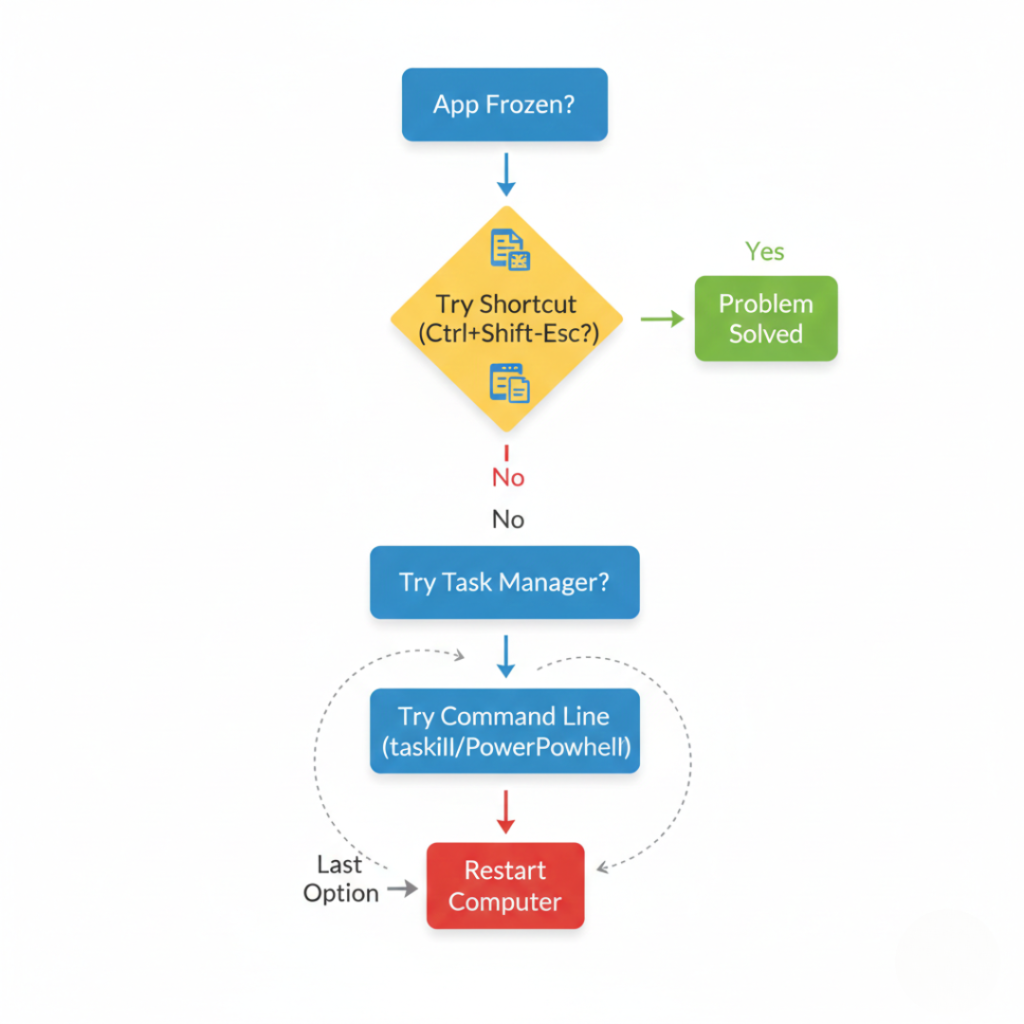
Method 1: Keyboard Shortcut Emergency Exit

Fastest method when the screen still responds.
Press:
Ctrl + Shift + Esc
That opens Task Manager directly bypassing menus.
Now:
Find the frozen app
Select it
Click End Task
Done.
Why it works
Task Manager communicates directly with the kernel scheduler, not the UI. That means even semi frozen desktops still obey.
Personal anecdote: During a university exam lab in 2023, Chrome locked on 40 PCs after a bad extension update. We cleared every system in under 2 minutes using only this shortcut. No reboots required.
Method 2: Advanced Termination via Task Manager Details Tab
Sometimes the basic tab lies. The app looks idle but refuses to die.
Open Task Manager
Go to Details
Now you’ll see real processes like:
chrome.exe (many instances)
teams.exe
photoshop.exe
Right click → End process tree
This kills child processes too.
Extremely useful for browsers.
Method 3: Command Line Force Kill (Most Reliable)
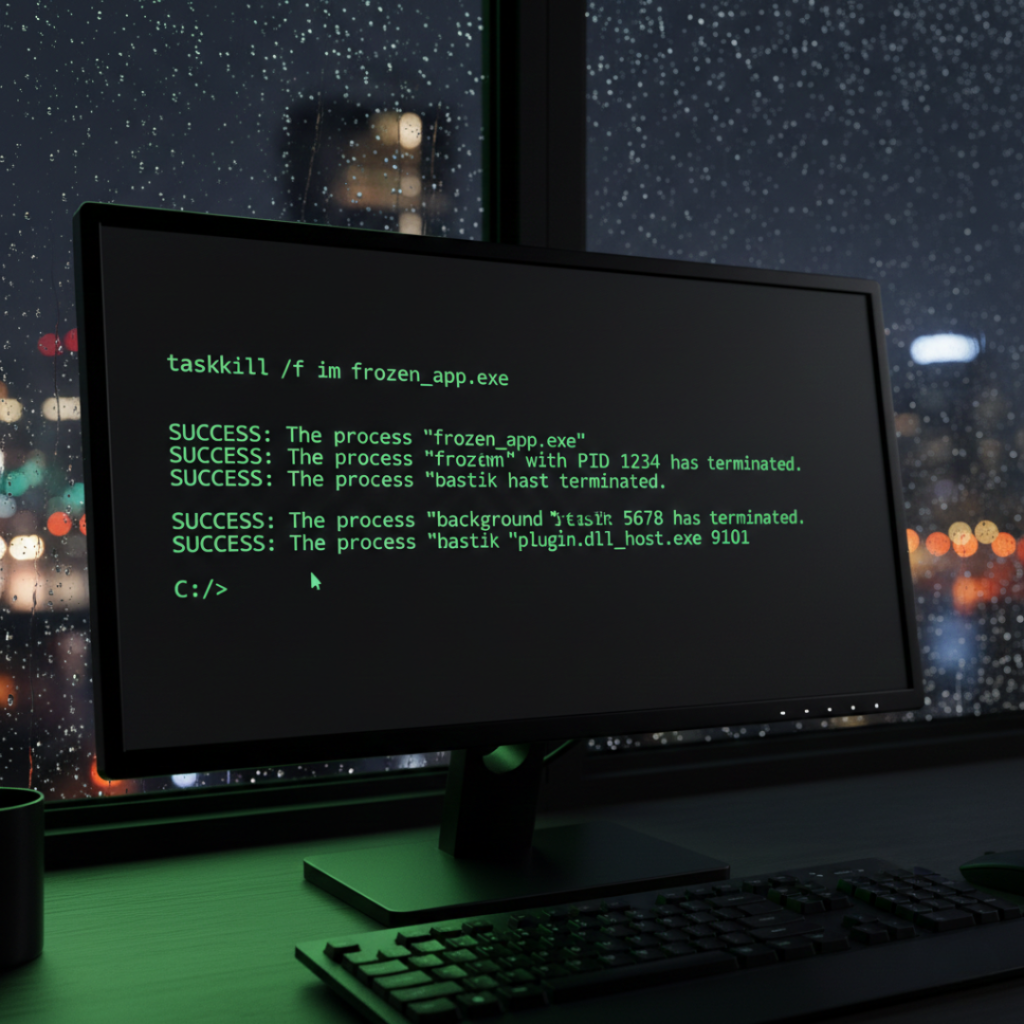
When GUI tools fail, the command line never negotiates.
Open Command Prompt as admin:
Type:
taskkill /f /im appname.exe
Example:
taskkill /f /im notepad.exe
The /f flag means force.
Why this matters
You’re bypassing Windows Explorer and sending a termination signal directly through the scheduler.
This method saved a CAD workstation in a Chennai architecture firm I helped last year. The UI was frozen but rendering still consumed CPU. A single command stopped a 100 percent CPU lock instantly.
Method 4: PowerShell Precision Kill
For stubborn services or invisible apps.
Open PowerShell and run:
Stop-Process -Name appname -ForceStop-Process -Id 4560 -Force
PowerShell works deeper than standard tools and handles permission locked processes better.
Task Manager vs Command Line vs PowerShell
Different tools. Different strengths.
| Method | Best For | Speed | Reliability |
|---|---|---|---|
| Task Manager Basic | Normal freezes | Fast | Medium |
| Details Tab | Multi process apps | Fast | High |
| Command Prompt | Frozen desktop | Medium | Very High |
| PowerShell | System level locks | Medium | Maximum |
Common myth: restarting is safer
Reality: frequent forced shutdowns increase file corruption risk according to Microsoft support documentation.
So yes, learning how to force close an application on Windows actually protects your data.
When You Should NOT Force Close
Important nuance here.
Force killing interrupts writing operations. If the app is saving:
databases
video exports
system updates
firmware flashing tools
Wait first.
I once saw a gaming laptop lose its BIOS during a forced shutdown while updating. Expensive lesson.
Rule of thumb
If disk LED is constantly active and CPU is low, wait 30 to 60 seconds.
If CPU is maxed and UI frozen, terminate immediately.
Real Benefits Beyond Convenience
This isn’t just about fixing a frozen screen.
1. Prevent system wide crashes
Windows isolates processes. Killing one avoids kernel panic scenarios.
2. Recover unsaved work faster
Many modern apps autosave after restart because the OS session remains intact.
3. Reduce SSD wear
Forced power offs can corrupt journaled file systems according to NIST storage reliability guidelines.
4. Maintain remote sessions
Remote desktop connections often survive process termination but not system reboot.
Who benefits most:
Developers running emulators
Designers using heavy render tools
Gamers dealing with GPU driver hangs
Office workers using cloud sync apps
Who shouldn’t rely on it:
If freezes happen daily, you have a driver or hardware issue. This is a bandage, not a cure.
Expert Insight
Windows performance specialist Mark Russinovich, CTO of Azure at Microsoft and creator of Sysinternals, explains in his Windows Internals presentations that most application hangs occur due to thread waits rather than crashes. Ending the process simply releases system resources, allowing the scheduler to resume normal operation.
That’s why your PC instantly “comes back to life.”
Final Takeaways
After fixing thousands of frozen PCs, here’s what matters:
First: Don’t restart immediately. Kill the process first.
Second: Learn command line termination. It always works.
Third: Frequent freezes signal deeper issues.
Mastering how to force close an application on Windows turns panic into a 5 second fix.
Next time your screen locks, you won’t wait helplessly.
You’ll take control.
Try it once now so you remember later.
FAQs People Actually Ask
The program stopped replying to the system message queue. Windows waits about 5 seconds before marking it unresponsive.
Usually no. Autosave systems recover temporary data, but unsaved edits since the last save are lost.
Yes. Use Task Manager Details or PowerShell to terminate hidden processes safely.
Startup services or sync clients relaunch automatically. Disable startup in Task Manager Startup tab
Safer than power cuts. Storage damage mostly happens during sudden power loss, not process termination.
Press Ctrl + Alt + Delete and launch it from the security screen. That interface runs separately from the desktop shell.
GPU drivers share threads across apps. One blocked process can stall rendering queues.
More than three freezes per week means investigate drivers, RAM, or updates.