
How to Turn On Automatic App Updates on iPhone
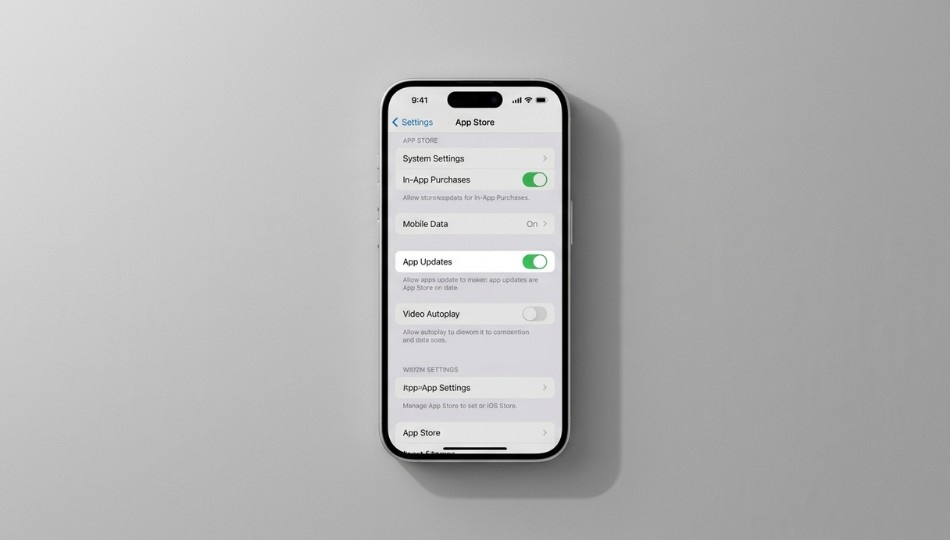
Almost half of iOS devices worldwide run outdated software at any given time, according to a 2025 report from Appaloosa. On iPhones, this isn’t about laziness it’s about confusion. And in 2026, with Apple moving the automatic app update setting in iOS 18, it’s no wonder so many users are lost.
Turning on automatic app updates used to be simple. Now, the path has changed, obstacles have multiplied, and most online guides are outdated. In this guide, I’ll show you exactly how to turn on automatic updates on iPhone (iOS 18 and iOS 17), highlight hidden conflicts that might prevent updates, and explain how to confirm everything is working. By the end, you’ll have your iPhone updating apps automatically and safely.
Many iPhone users get frustrated navigating settings after an iOS update. For a full collection of solutions, check out our iPhone & iOS Troubleshooting & Guides
Quick Answer (Featured Snippet)
Automatic app updates on iPhone let your apps install the latest versions without you lifting a finger. Your device checks for updates when idle, connected to Wi-Fi, and ideally charging overnight. Unlike manual updates, these run quietly in the background. According to Apple Support (January 2026), apps downloaded from the App Store update automatically by default, though you can toggle this setting on or off anytime.
Why Automatic App Updates Have Become More Complicated in 2026
Many users assume they already have automatic updates enabled but their apps still fall behind. That’s largely because iOS 18 reorganized settings. Apple moved app-related options under a new Apps section, so the old Settings > App Store path no longer shows the App Updates toggle. Millions of users who upgraded found a different screen than expected, leading some to give up.
Security is another factor. Mobisoft Infotech’s 2025 iOS Security Checklist reports an 80% rise in cyberattacks targeting mobile apps. Vulnerabilities in apps and frameworks are patched frequently, but the window between a patch release and when a user installs it is exactly when attackers strike. Automatic updates close that window if the setting is actually working.
Four common blockers often go unmentioned:
iOS 18 settings path changes
Screen Time restrictions hiding the toggle
Low Power Mode stopping background downloads
EU users’ alternative app marketplace conflicts
We’ll cover each below.
How to Turn On Automatic App Updates on iPhone: Step by Step
First, check your iOS version: Settings > General > About > iOS Version.
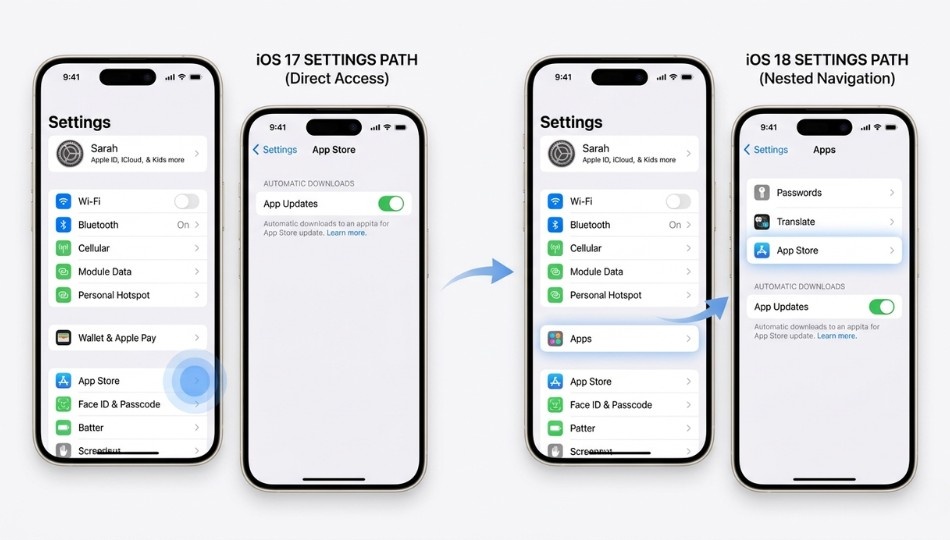
iOS 18 and Later (New Path)
Open Settings – Tap the grey gear icon on your Home Screen or App Library.
Tap Apps – Apple created a dedicated Apps section in Settings. Don’t select App Store directly from the main list.
Tap App Store – The path is now
Settings > Apps > App Store.Toggle on App Updates – Under Automatic Downloads, switch App Updates to green.
If you can’t see the toggle, check Screen Time restrictions:Settings > Screen Time > Content and Privacy Restrictions > iTunes & App Store Purchases > Installing Apps should be set to Allow.
iOS 17 and Earlier
Open Settings.
Tap App Store directly.
Under Automatic Downloads, toggle App Updates on.
Cellular Data Option
Below the toggle is Cellular Data. By default, updates only download over Wi-Fi. Enabling this lets updates run over cellular, which is convenient but can consume large amounts of data some updates exceed 200–400MB.
Automatic vs. Manual Updates: Which Should You Use?
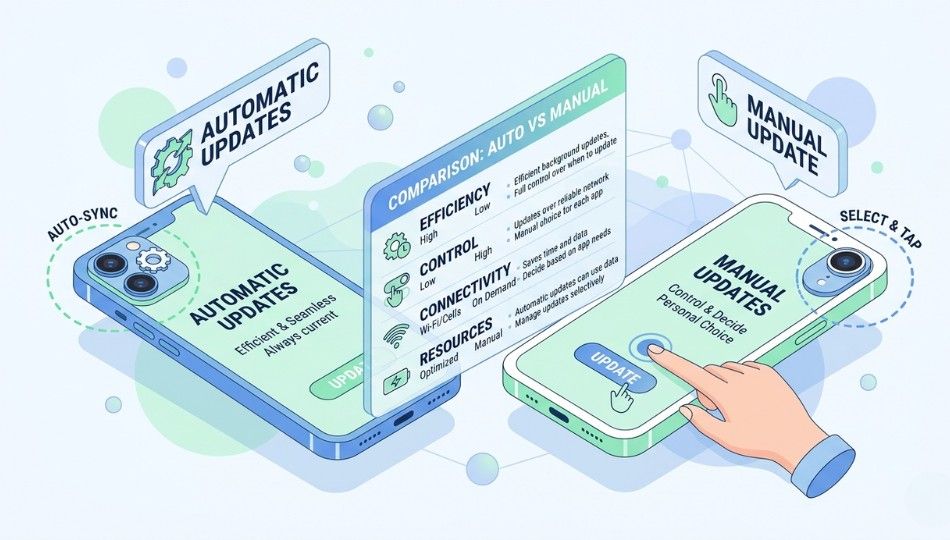
| Feature | Automatic Updates | Manual Updates |
|---|---|---|
| Effort | None, runs in background | Must open App Store |
| Timing | Overnight, while charging & Wi-Fi | Whenever you choose |
| Data | Wi-Fi only | Wi-Fi only |
| Control | None | Full, can read release notes |
| Risk of disruptions | Low | Same, but you see it sooner |
| Best for | Most users | Power users & professionals |
| Low Power Mode | No | Yes |
| Screen Time | Yes | No |
Myths to clear up:
“Updates happen while I’m using my phone.” False. Updates run when the device is idle, charging, and on Wi-Fi. Phased Release may delay some updates intentionally.
“Auto-updates drain battery overnight.” Minimal impact Apple schedules them for charging windows.
Practical advice: Use automatic updates for general apps and security. Use manual updates if you rely on specific workflows or want to review changes first.
Benefits and Real-World Impact of Enabling Auto-Updates
Security patches reach you immediately – App frameworks are patched as often as the system itself. Automatic updates minimize exposure.
App compatibility stays current – Developers release updates to prevent crashes on new iOS versions.
Red App Store badge disappears – No more lingering notification numbers.
A concrete example: a small delivery business left auto-updates off and missed a GPS sync patch. Drivers were off by 15 minutes for weeks. Turning auto-updates back on resolved the issue within 24 hours.
Note: Devices with less than 1–2GB free storage may fail to update silently. Check Settings > General > iPhone Storage.
Mistakes to Avoid When Setting Up Automatic App Updates
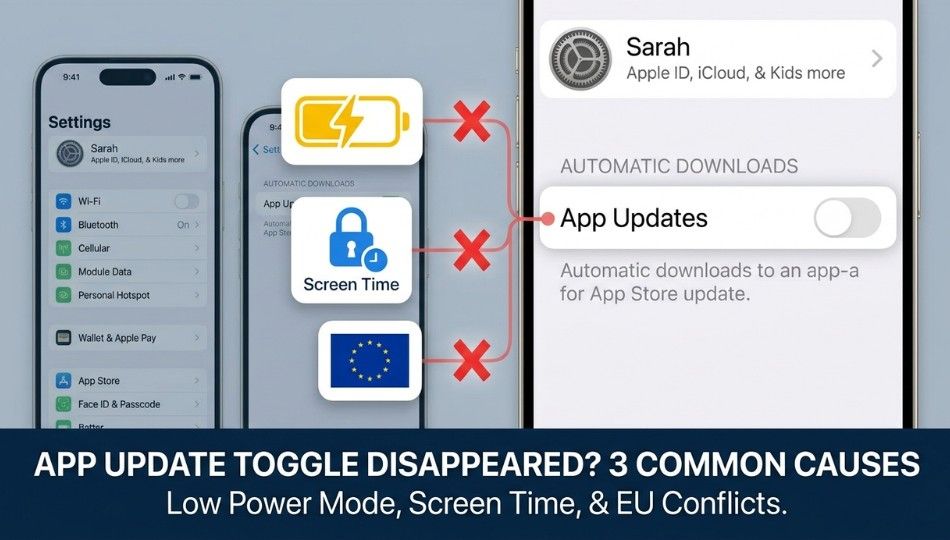
Not re-checking after iOS upgrades – iOS 18 moved the toggle. Always verify.
Leaving Low Power Mode on permanently – Auto-downloads are blocked when the yellow battery icon is active.
Ignoring Screen Time conflicts – Family-shared devices may hide the toggle. Fix via Screen Time settings.
EU users with alternative marketplaces – Apps like Epic Games Store can block auto-updates. Review
Settings > Privacy & Security > Alternative App Marketplaces.Assuming Wi-Fi means internet access – Captive portals or faulty routers can prevent downloads even if Wi-Fi is connected.
What to Do Right Now
Confirm your iOS version and path:
iOS 18:
Settings > Apps > App StoreiOS 17 or earlier:
Settings > App Store
Clear blockers: check Low Power Mode, Screen Time restrictions, and EU marketplace conflicts.
Verify: Open the App Store profile and check Recently Updated.
Frequently Asked Questions
Settings > Apps > App Store > App Updates. Ensure Low Power Mode is off.
Screen Time restrictions, Low Power Mode, or EU marketplace conflicts.
Far far away, behind the word mountains, far from the countries Vokalia and Consonantia, there live the blind texts. Separated they live in Bookmarksgrove right at the coast
Far far away, behind the word mountains, far from the countries Vokalia and Consonantia, there live the blind texts. Separated they live in Bookmarksgrove right at the coast
Typically within 24 hours, overnight while charging on Wi-Fi. Phased Release may delay some updates.
No, unless you enable the Cellular Data toggle.
No, the toggle applies to all apps. Manual updates require disabling auto-updates globally.
They accumulate bugs, lose compatibility, and miss security patches.
Yes. Companion Watch apps update alongside their iPhone app.
Open the App Store, tap your profile, and check Recently Updated for apps you didn’t manually update.
Open the App Store, tap your profile, and check Recently Updated for apps you didn’t manually update. If a specific app asks for Apple ID verification, follow our guide on how to trust an application on iPhone