
iPhone & iOS Troubleshooting & Guides

More than 1.4 billion Apple devices are currently in use worldwide. Yet many users still struggle to figure out the fastest way to get help when something stops working.
If your iPhone freezes, your Mac won’t boot, or your iPad battery drains unexpectedly, finding the right support channel can save hours of frustration.
The truth is that Apple device support has evolved a lot in the last few years. Since the expansion of AI-powered features and system integrations in modern versions of iOS, troubleshooting has become more complex. What worked three years ago may not be the best option today.
This guide explains how Apple device support actually works in 2026, which support channel to choose, and how to solve problems faster without wasting time.
What Is Apple Device Support?
Apple device support refers to the official help network created by Apple Inc. to diagnose and fix problems across its products, including:
iPhone
iPad
MacBook Pro and other Mac computers
Apple Watch
Apple TV
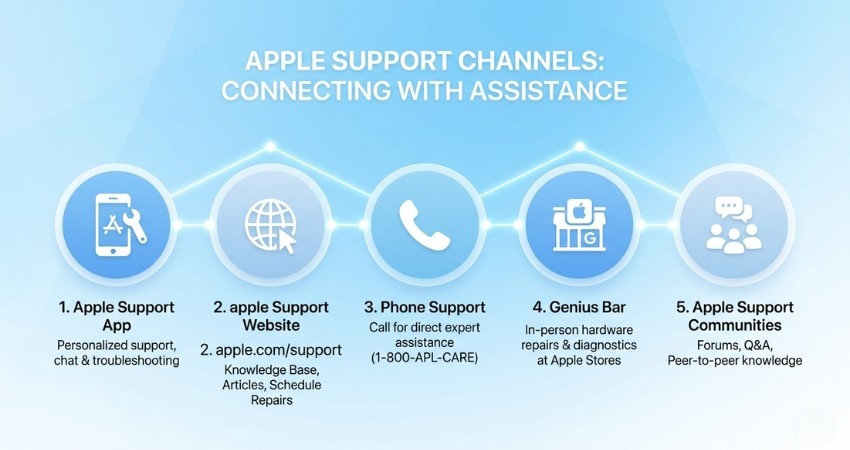
Support is available through several channels:
the Apple Support app
Apple’s support website
phone and chat agents
in-store appointments at the Genius Bar
authorized repair providers
Unlike third-party tech services, Apple’s official support team uses internal diagnostic tools designed specifically for Apple devices.
Customer satisfaction is also relatively high. According to data reported by Statista, Apple’s device support satisfaction score reached 82 out of 100, well above the consumer electronics industry average.
Why Apple Device Support Matters More in 2026
Getting help with an Apple device used to be straightforward. Restart the device or visit a store.
Today, the Apple ecosystem is far more advanced.
Modern devices rely on AI features, cloud syncing, and complex system integrations. These layers can sometimes create new types of software issues that didn’t exist a few years ago.
For example:
AI features may store local models that occasionally become corrupted.
System services connected to iCloud can cause sync conflicts.
New updates sometimes introduce temporary bugs.
According to a 2025 tech experience report by J.D. Power, nearly half of Apple users wait more than 24 hours before seeking support simply because they aren’t sure where to start.
That delay often turns a simple fix into a much bigger problem.
The fastest solutions usually come from people who understand which support channel to use for each issue.
How Apple Device Support Actually Works: A Step-by-Step Breakdown
The easiest way to solve Apple device problems is to follow a simple process.
Step 1: Identify Your Problem Type
First, determine whether the issue is software or hardware.
Software problems include:
apps crashing
system glitches
sync issues
settings problems
These issues are usually resolved through online support or chat.
Hardware problems include:
cracked screens
battery failure
water damage
physical component failures
Hardware problems usually require in-person service.
If your iPhone battery icon suddenly turns yellow, it usually means Low Power Mode is enabled. why your iPhone battery shows yellow and what causes it and when you should turn it off.
Step 2: Start With the Apple Support App
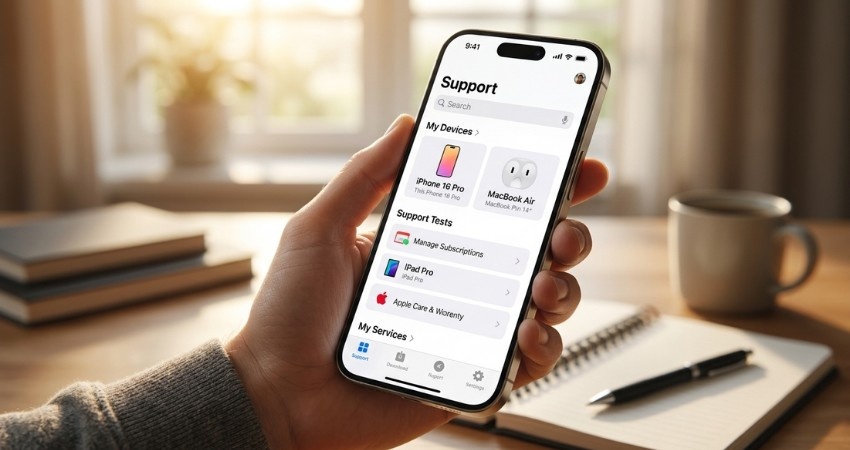
The fastest place to get help is usually the Apple Support app.
The app automatically detects your devices and provides:
instant troubleshooting guides
live chat with Apple agents
scheduled callbacks
repair booking options
Because your device is already registered, support agents can quickly see details like model number and warranty status.
That alone can save significant time.
Step 3: Use Apple’s Support Website for Research
Some issues require a bit of investigation before contacting support.
The official Apple support portal provides:
product manuals
troubleshooting articles
system update information
repair documentation
This resource is useful when a problem may have multiple causes, such as battery drain or connectivity issues.
Sometimes users think an app has been deleted when it’s actually hidden from the Home Screen. If that happens, how to unhide apps on iPhone to quickly make the app visible again.
Step 4: Book a Genius Bar Appointment for Hardware Issues
If your device has a physical problem, visiting the Genius Bar inside an Apple Store is usually the best option.
However, always book your appointment online first.
Walk-in wait times can exceed 90 minutes during busy hours. Scheduling ahead allows technicians to prepare for your issue before you arrive.
Step 5: Check Whether You Have AppleCare+
If your device has coverage through AppleCare+, repair costs can drop dramatically.
For example:
screen replacement may cost around $29
accidental damage repairs are heavily discounted
Always confirm your AppleCare+ coverage before agreeing to a repair quote.
Comparing Apple Support Options
Apple Support App
Best for quick solutions.
Includes diagnostics, chat support, and repair booking in one place.
Apple Support Website
Ideal for users who prefer to research the issue before contacting support.
Genius Bar
The best option for hardware repairs or detailed device diagnostics.
AppleCare+
A paid protection plan that lowers repair costs and extends warranty coverage.
Apple Community Forums
The Apple Community forums are often overlooked. They contain discussions where experienced users and certified advisors share solutions.
When a new iOS update introduces a bug, community forums sometimes identify the fix before official support channels do.
Some apps installed outside the App Store may show a developer verification warning. In that case, how to trust an application on iPhone before contacting support.
Real Example of Apple Technical Support in Action

Consider a small photography business owner who experienced a major issue.
Her MacBook Pro suddenly stopped working just days before an important client shoot.
She opened the Apple Support app and requested a callback.
Within minutes, a technician diagnosed the problem and arranged a repair appointment at a nearby Apple Store.
Because she had AppleCare+ coverage, Apple arranged a replacement device so her work could continue without interruption.
The entire issue was resolved within a day.
Common Mistakes That Slow Down Apple Device Support
Many people accidentally delay their own support process.
Here are some of the most common mistakes.
Not Having Your Apple ID Ready
Support agents usually need to verify your identity using your Apple ID. If you cannot access it, troubleshooting may pause until account recovery is completed.
Giving Vague Problem Descriptions
Instead of saying:
“My phone is slow.”
Try explaining:
“My iPhone started overheating after installing the latest update three days ago.”
Specific details help support agents diagnose the problem faster.
Skipping Basic Troubleshooting
Restarting your device often fixes temporary glitches.
If you contact support before doing this, the agent will ask you to restart the device anyway, adding extra time to the session.
Visiting Unauthorized Repair Shops
Repairs from non-authorized technicians can void your warranty.
Always verify whether a repair center is officially approved by Apple.
Waiting Too Long to Ask for Help
Trying multiple DIY fixes for days can sometimes make problems worse.
If the issue persists after two troubleshooting attempts, contacting Apple support is usually the smarter move.
Many users contact support when the SOS label appears in their status bar. Are you sure about what does SOS means on iPhone , when it’s normal and when it indicates a network limitation.
Three Things You Should Do Right Now
If you own Apple devices, these simple steps will make future troubleshooting much easier.
1. Install the Apple Support app
Make sure your devices are registered and linked to your account.
2. Understand the difference between software and hardware issues
Choosing the right support channel can cut troubleshooting time in half.
3. Review your AppleCare+ coverage
If you frequently use your device for work or travel, the protection plan may be worth the cost.
Frequently Asked Questions About Apple Device Support
The fastest method is using the Apple Support app. It allows you to start a chat or request a callback without navigating complicated phone menus.
Yes, support is free for software issues and for devices still under the standard one-year warranty. Hardware repairs outside warranty usually involve a service fee.
Technicians at the Genius Bar perform hardware diagnostics, replace batteries or screens, and coordinate repairs or device replacements.
Appointments usually last 30 to 45 minutes.
Software issues solved through chat often take 15–45 minutes.
Hardware repairs may take longer depending on parts availability.
Mail-in repair services usually take 3–5 business days.
No. Apple technicians cannot access private data without your permission. Diagnostic sessions only access system information required to troubleshoot the device.
Apple can escalate the case to senior support specialists. In some situations, a replacement device may be offered under warranty.