
Restart Graphics Driver
The 5-Second Fix That Saves You From a Full Reboot
Ever had your screen freeze mid-game or while editing a presentation, and your only option seemed to be restarting the entire PC?
Yeah. We have all been there.
As someone who has tested GPUs and Windows builds for over a decade across gaming rigs and enterprise laptops, I can tell you this: learning how to restart graphics driver properly can save hours of frustration. It is not a hack. It is built into the operating system. And surprisingly, most people do not know it exists.
Here is what is actually happening behind the scenes and how to fix it without panic.
What Does It Mean to Restart Graphics Driver?
Restarting a graphics driver is the process of resetting the GPU driver software without rebooting the entire system. It works by reinitializing the display subsystem inside the operating system, forcing the graphics processing unit to reload its driver and clear temporary glitches.
On Windows, the shortcut triggers a built-in feature called Timeout Detection and Recovery or TDR, introduced by Microsoft to prevent system-wide crashes.
According to official documentation from Microsoft Learn, Windows monitors GPU responsiveness (Timeout Detection and Recovery documentation) and resets the driver if it detects a hang longer than two seconds.
In plain English?
Your computer already knows how to fix a frozen screen. You just need to trigger it.
Why Graphics Drivers Freeze More Often in 2024 and 2025
Quick answer: workloads have exploded.
Modern GPUs are not just for gaming anymore. They power AI models, video editing, browser acceleration, and even background apps like Discord overlays. According to Steam’s 2024 Hardware Survey from Valve Corporation, over 72 percent of PC gamers use GPUs with real-time ray tracing capabilities. That means heavier drivers and more complexity.
And complexity breaks.
Research from the National Institute of Standards and Technology shows that software complexity directly increases fault probability in large systems. GPU drivers are among the most complex consumer software stacks today.
Back in 2020, most freezes were tied to overheating. In 2025? Driver conflicts, Windows updates, and GPU scheduling are bigger culprits.
Plot twist: often it is not your hardware.
I once worked with a client named Rahul who thought his RTX 3060 was failing. Black screens, random flicker, stutters. We nearly replaced the card. Instead, we reset the driver, reinstalled clean firmware, and disabled hardware acceleration in Chrome. Problem solved in 40 minutes.
Because sometimes the fix is software, not silicon.
How to Restart Graphics Driver on Windows
If you’re wondering how to reset graphics driver without restarting your entire PC, the good news is that Windows has a built-in shortcut that does exactly that. It takes five seconds and works in most temporary freeze situations.
Method 1: Keyboard Shortcut
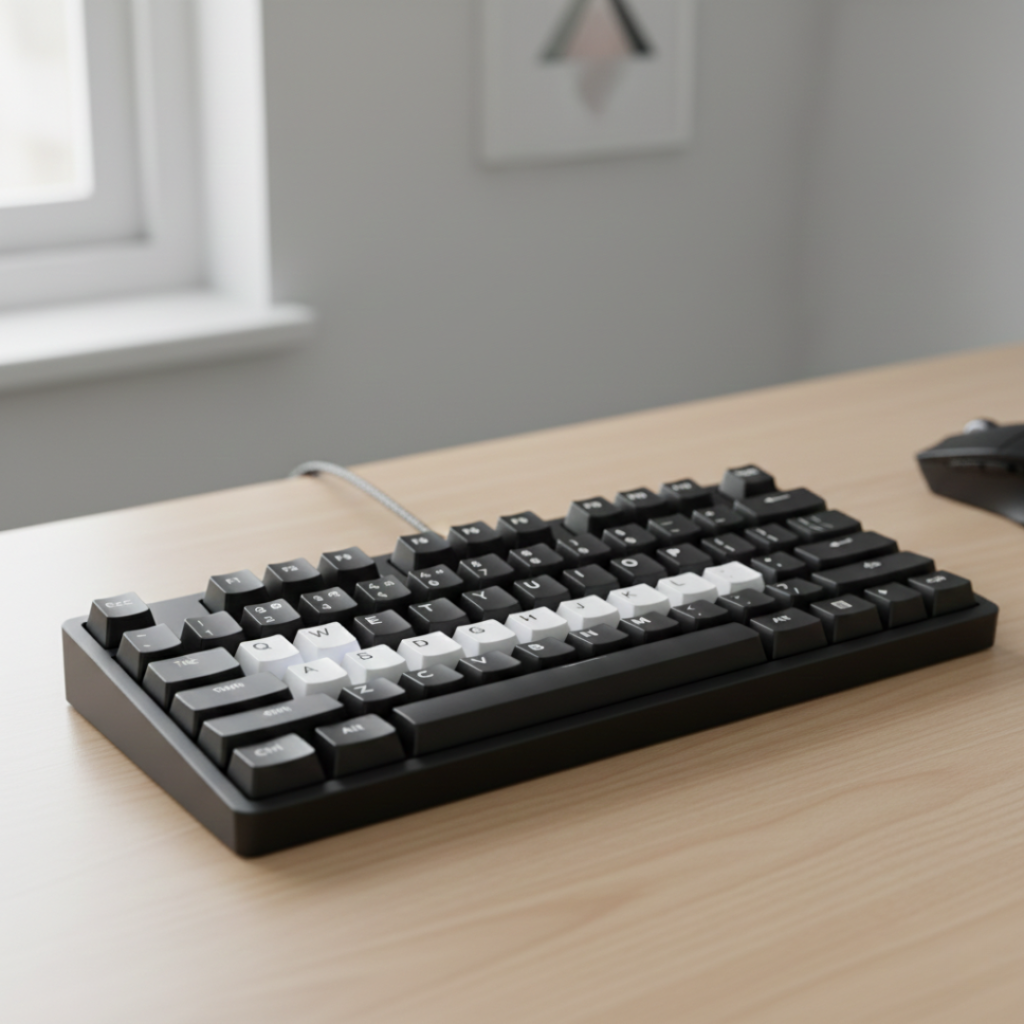
Press:
Windows key + Ctrl + Shift + B
Your screen will flicker. You will hear a short beep. That means Windows just reloaded the display driver.
This shortcut works on Windows 10 and Windows 11.
According to Microsoft Support, this key combination forces the system to reset the graphics stack without closing applications.
When should you use it?
Screen freezes but audio continues
Game locks visually
Display driver crashes
Black screen but PC still running
It will not fix hardware failure. But for driver glitches, it works shockingly well.
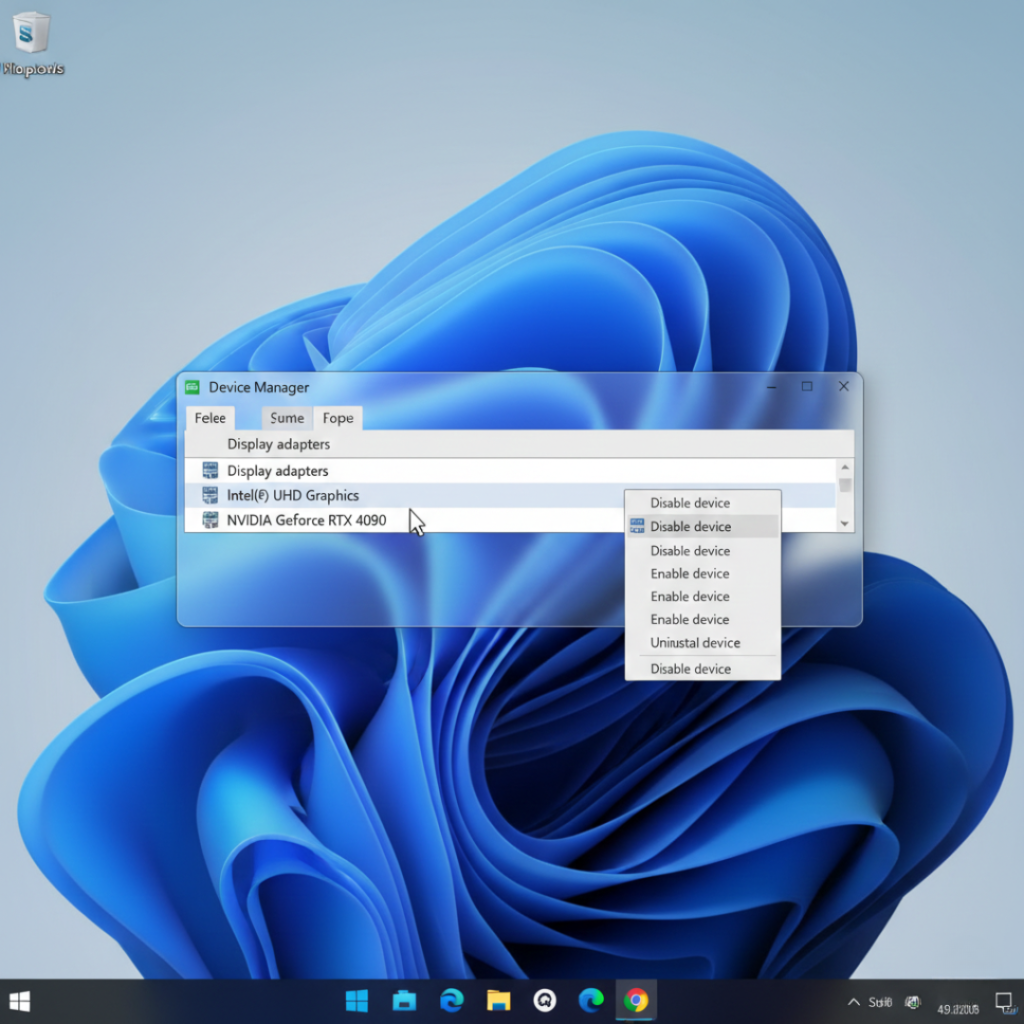
Method 2: Restart from Device Manager
If the shortcut does not work, use Device Manager.
Right-click Start
Open Device Manager
Expand Display Adapters
Right-click your GPU
Click Disable
Wait five seconds
Click Enable
This forces a manual reload of the GPU driver.
If you are using an NVIDIA card from NVIDIA or an AMD GPU from Advanced Micro Devices, this method refreshes the driver stack without a full reboot.
Method 3: Clean Reinstall Using Official Tools
Sometimes restarting graphics driver is not enough. You need a clean reset.
For NVIDIA users, download drivers from the official site at nvidia.com and choose Clean Installation.
For AMD users, use AMD Cleanup Utility.
Industry analysts at Gartner report that driver-related instability is one of the top five causes of enterprise workstation crashes in 2024.
So yes, driver hygiene matters.
Restart vs Reinstall vs Roll Back: What Is Better?
Let us break this down clearly.
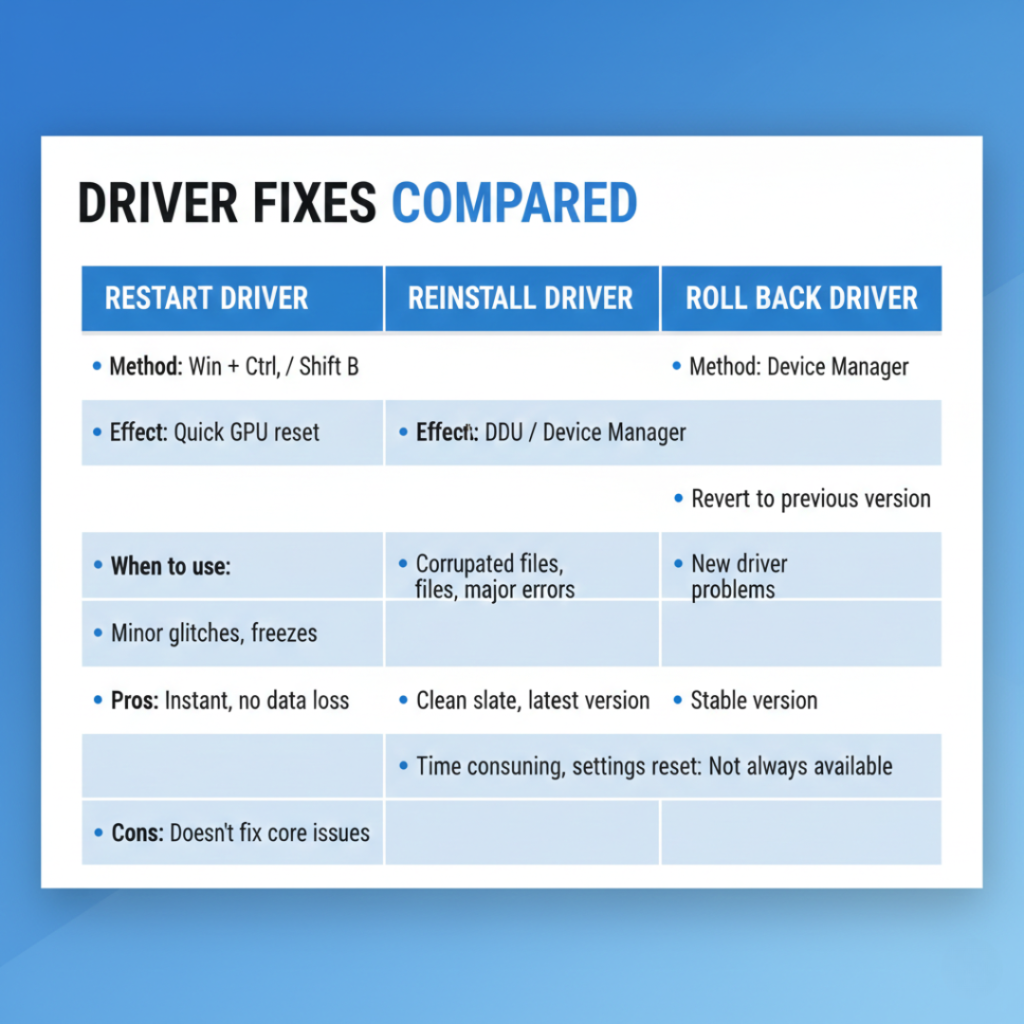
Restart Graphics Driver
Best for temporary freezes and visual glitches
Takes 5 seconds
No data loss
Reinstall Driver
Best for corrupted or outdated drivers
Takes 10 to 20 minutes
Fixes deeper issues
Roll Back Driver
Best when a new update causes crashes
Available in Device Manager under Properties
Here is the part most guides skip.
If your crashes began right after a Windows update, rolling back is often smarter than reinstalling. Windows updates sometimes push GPU compatibility changes that conflict with older firmware.
And yes, this has happened repeatedly after major Windows 11 releases.
There is no magic bullet. But there is a pattern.
Who Should Use This and When?
Restart graphics driver is useful for:
Gamers experiencing screen stutter
Designers using Adobe Premiere or Blender
Developers running GPU-accelerated workloads
Laptop users seeing flicker on external monitors
It is especially helpful for integrated graphics systems from Intel where driver resets can fix display scaling bugs.
However, if your screen shows artifacts like colored lines or persistent distortion, that could indicate hardware failure.
I learned this the hard way in 2023 while testing an overclocked GPU. Restarting worked three times. On the fourth crash, the VRAM was physically degraded.
Software resets cannot fix dying hardware.
Advanced Insight: Why the Shortcut Works
Windows uses a GPU scheduler inside the Windows Display Driver Model or WDDM architecture. When the system detects a GPU timeout longer than two seconds, it triggers Timeout Detection and Recovery.
According to documentation on Microsoft Learn, this process prevents the infamous Blue Screen of Death that plagued older versions of Windows.
Instead of crashing the whole OS, Windows resets only the graphics subsystem.
That architectural change reduced full system crashes significantly after Windows 7.
That is not just convenience. That is engineering progress.
Three Takeaways That Actually Matter
First: Most GPU freezes are driver-related, not hardware failure.
Second: The Windows shortcut fixes many issues instantly.
Third: If crashes persist, reinstall or roll back intelligently.
Restart graphics driver is not a hidden trick. It is a built-in recovery tool that prevents panic and protects your workflow.
Next time your screen freezes, do not slam the power button.
Try the shortcut first.
And if it works for you, share this with someone who still restarts their entire PC every time their game stutters.
Frequently Asked Questions
No. It refreshes the display driver without closing applications. You might see a flicker, but your work remains open.
Yes, in most cases. It is an official Windows function designed to prevent crashes.
Because the GPU driver is reinitializing. The black screen indicates reset in progress.
Not directly with a shortcut. On macOS, you typically restart the system or reset the graphics process indirectly.
As often as needed for temporary glitches. If you need it daily, investigate deeper driver or hardware issues.
Use Device Manager or perform a clean reinstall from the GPU manufacturer’s official website.
Yes. In Windows troubleshooting, resetting and restarting the graphics driver usually refer to the same process of reloading the GPU driver without rebooting the system.